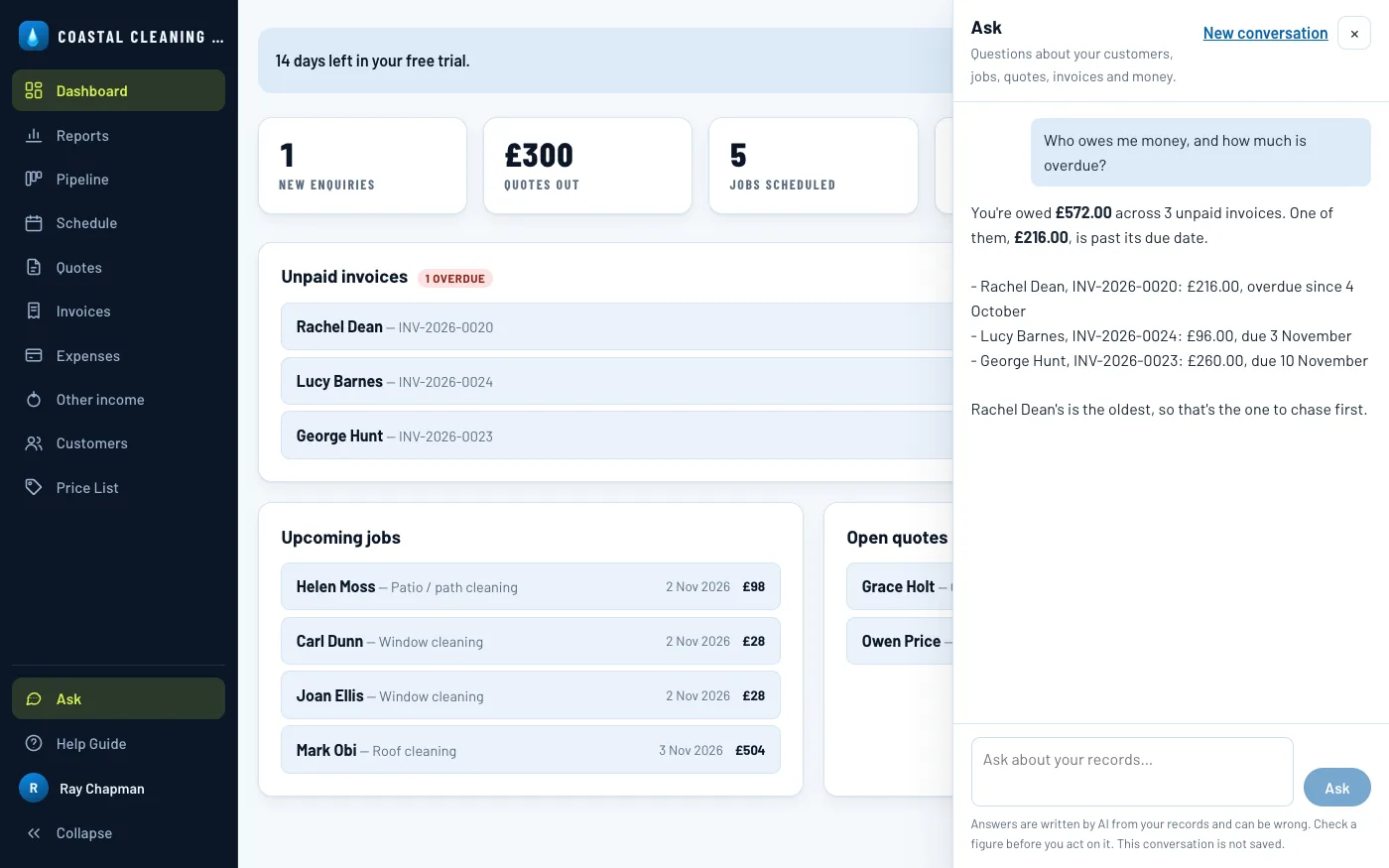
Getting started
Create your account
There is no default sign-in and nothing to install. Go to your CRM's address and the sign-in card is waiting.
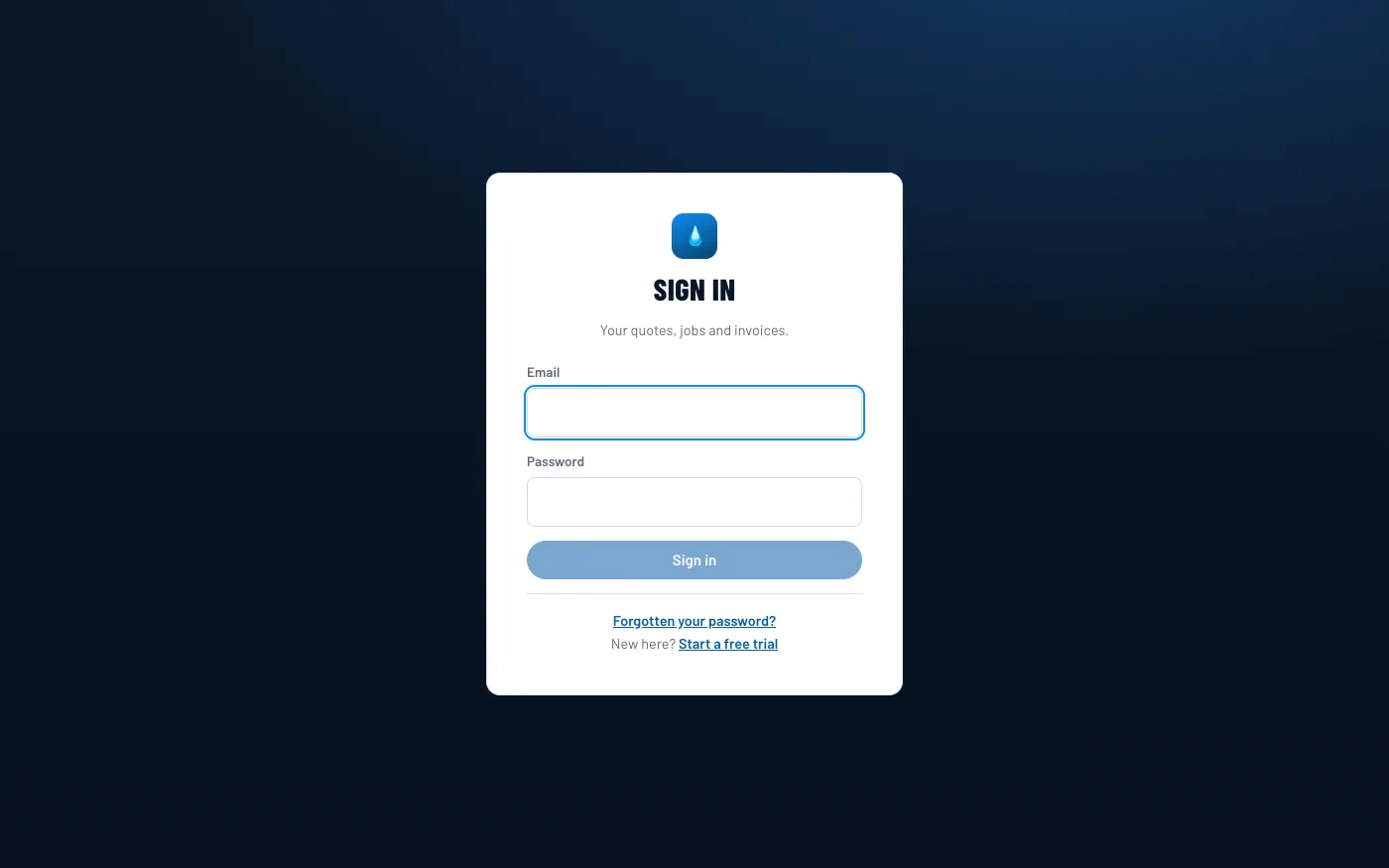
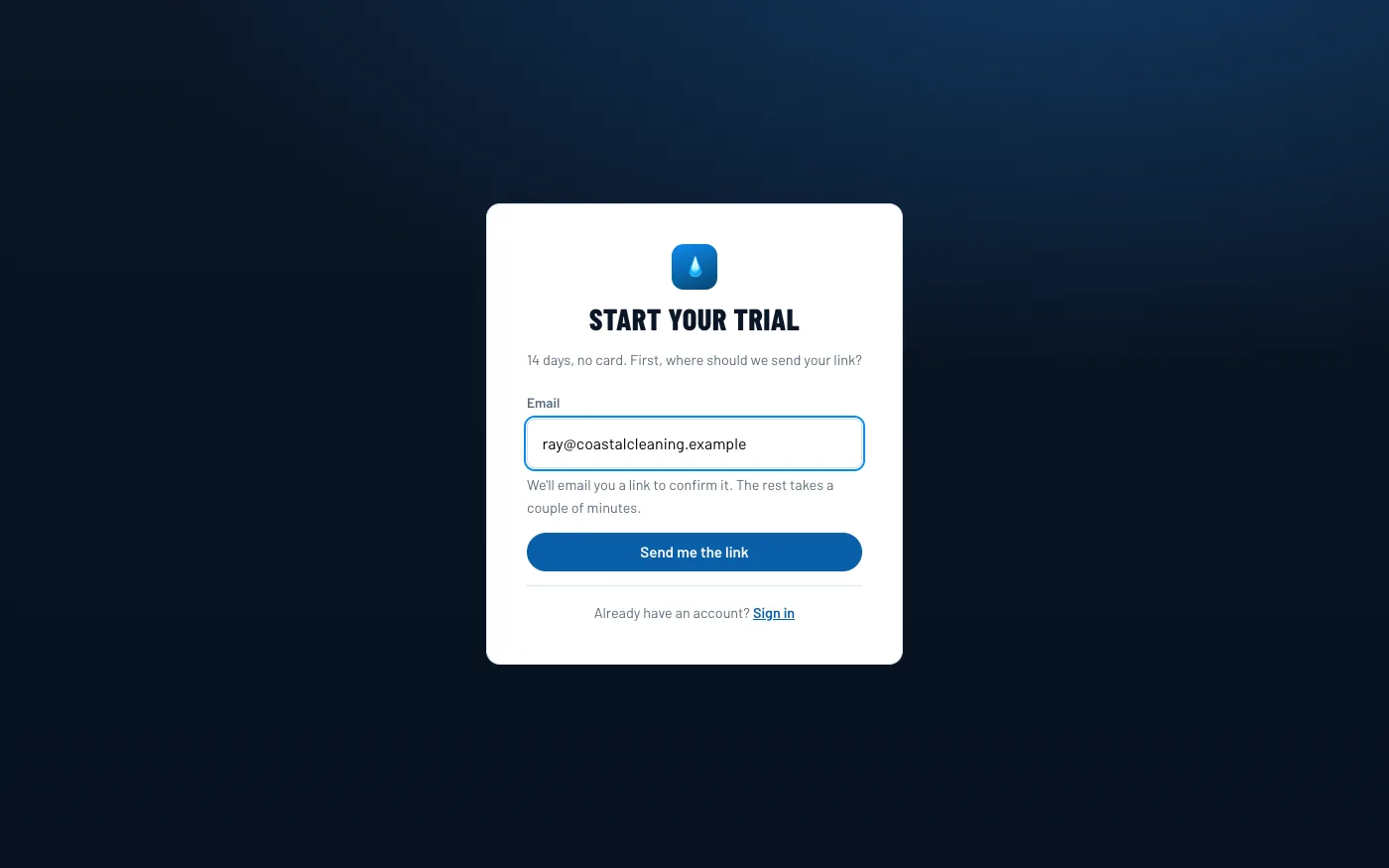
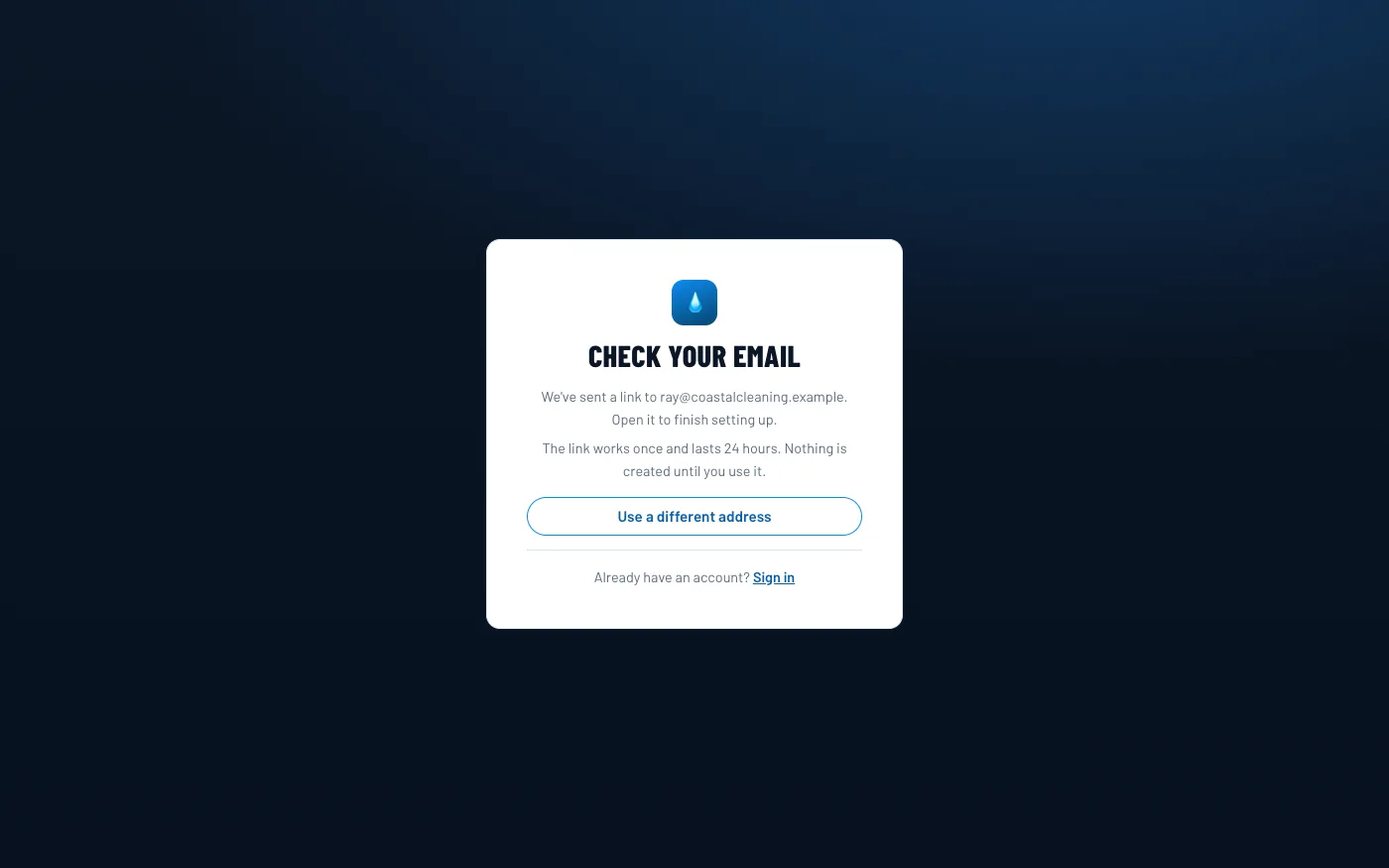
Choose Start a free trial and give your email address. That's all the first step asks: we email you a link to confirm the address is yours, and nothing is set up until you open it. The link works once and lasts 24 hours.
The link opens Finish setting up: your business name, your own name, and a password of at least 10 characters. No card, no setup wizard.
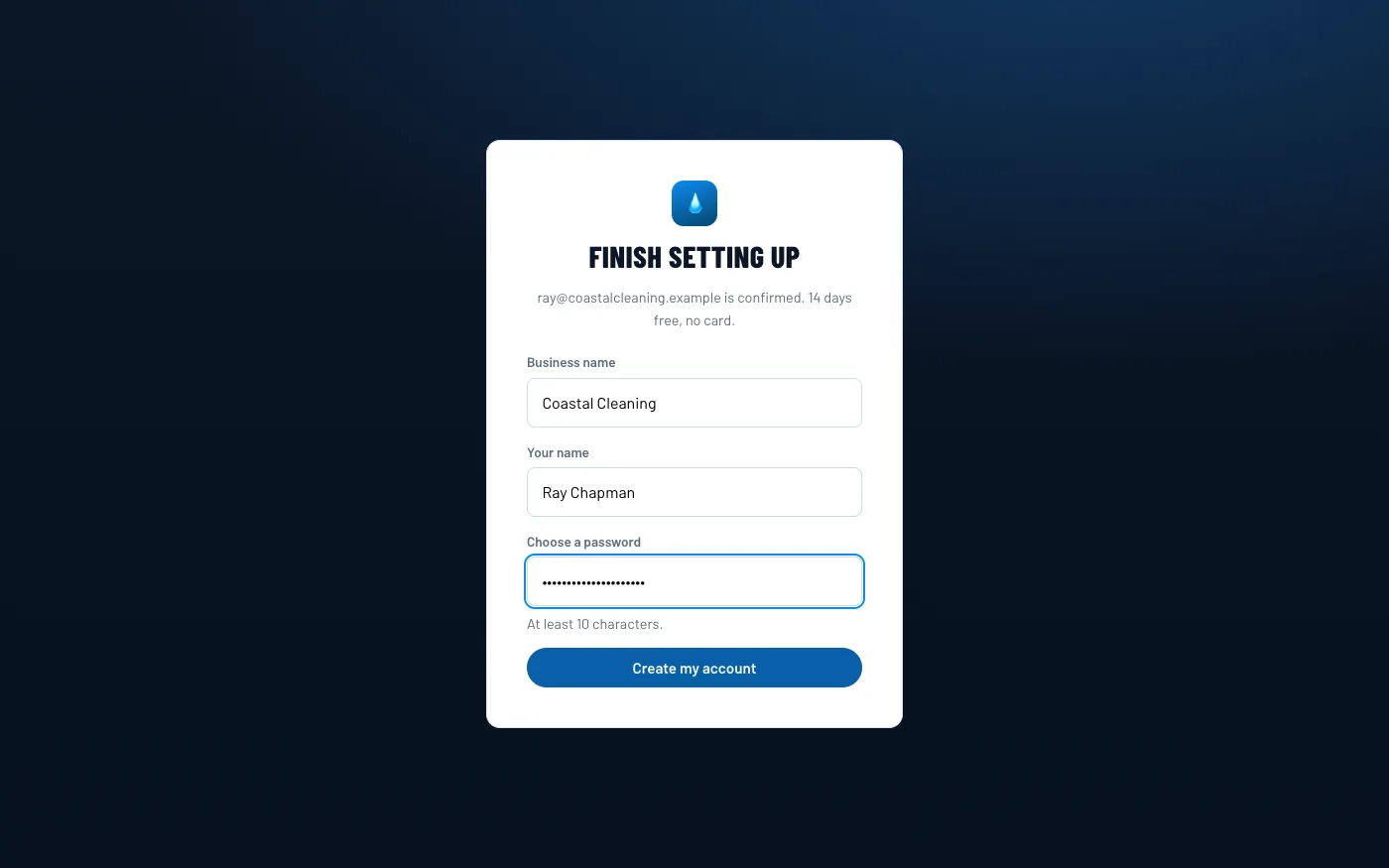
Create my account and you land straight in the CRM, on an empty Dashboard, with a banner counting down the trial.
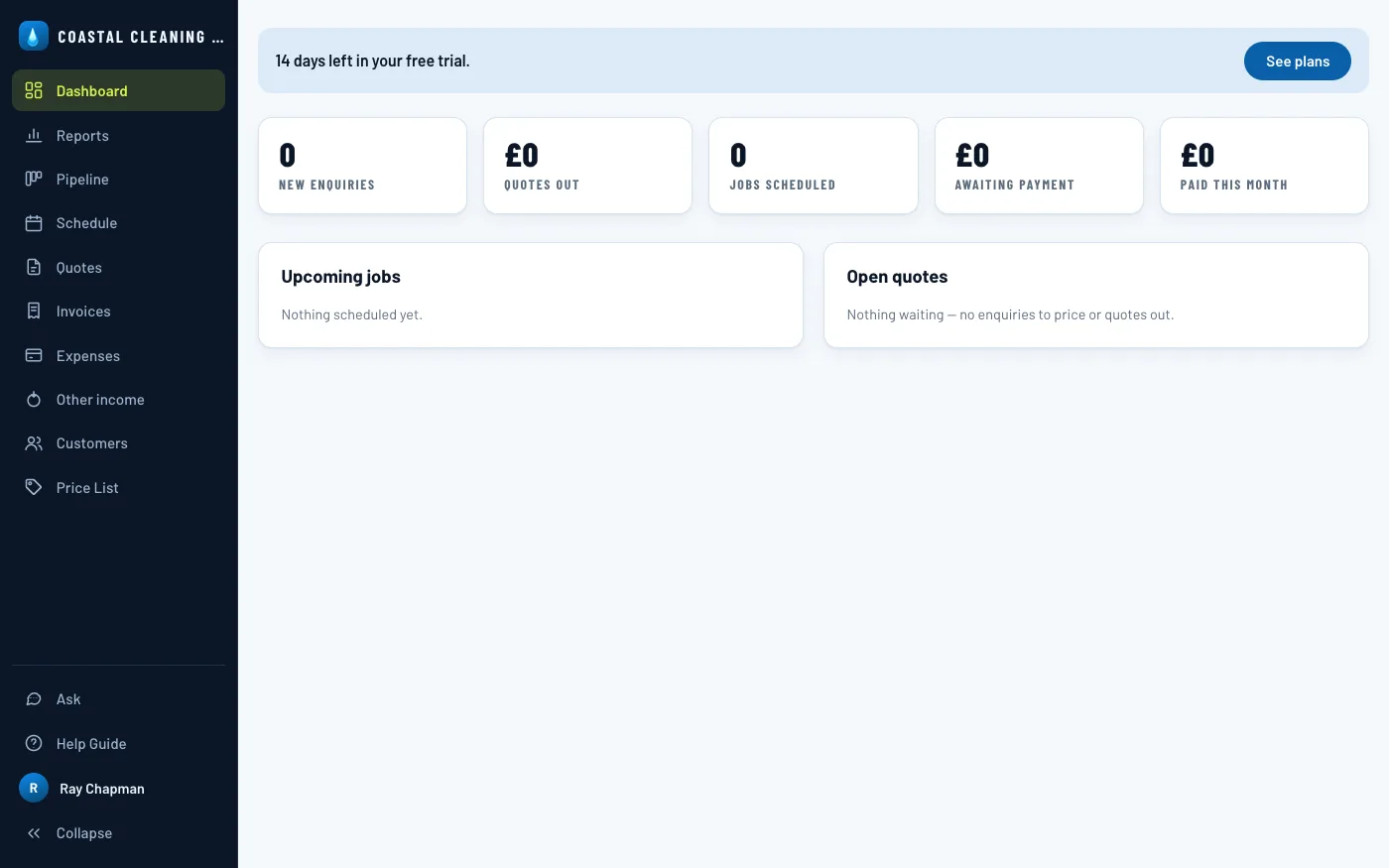
The day-to-day screens run down the left. Everything about running the business — its details, its team, who did what, its plan — is under your name at the foot of that sidebar.
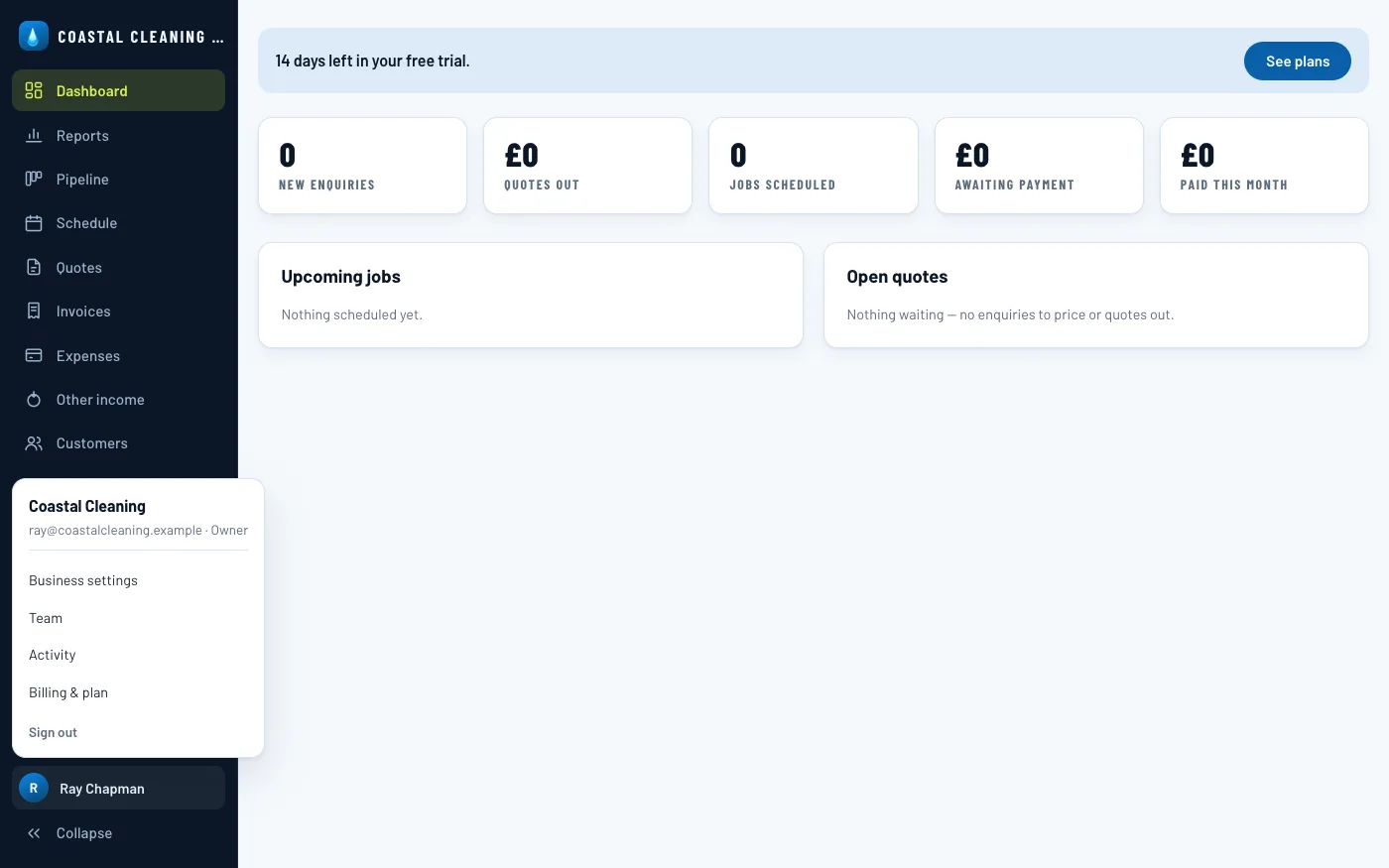
Your business
Set up business settings
Open Business settings from that menu. Everything here prints on the quotes and invoices your customers see, so it's worth doing before the first one goes out. Owners and admins can open this screen — staff get a page named Your sign-in instead, with nothing but their own password on it.
Upload a logo (PNG, JPEG, WebP or GIF, up to 5MB) — without one, documents fall back to your business name set in type. Fill in the name, a one-line tagline, and your contact details. If you're VAT registered, tick it and set the rate, and quotes and invoices add VAT from then on.
Under Emailing customers, choose where your customers' replies should go, and whether the CRM should chase unpaid invoices for you. Under Asking for reviews, paste the link customers should leave a review on and every paid invoice carries it as a QR code — see Ask for a review below. Add your bank details so unpaid invoices tell customers how to pay by transfer; leave them blank and the invoice asks the customer to call instead. The assistant is covered in step 15. Down at Website enquiries is your account's own intake address — point a website contact form at it and every submission lands in your pipeline as a New Lead, automatically. Take enquiries from your website, below, has the address, what to post to it, and a form to copy.
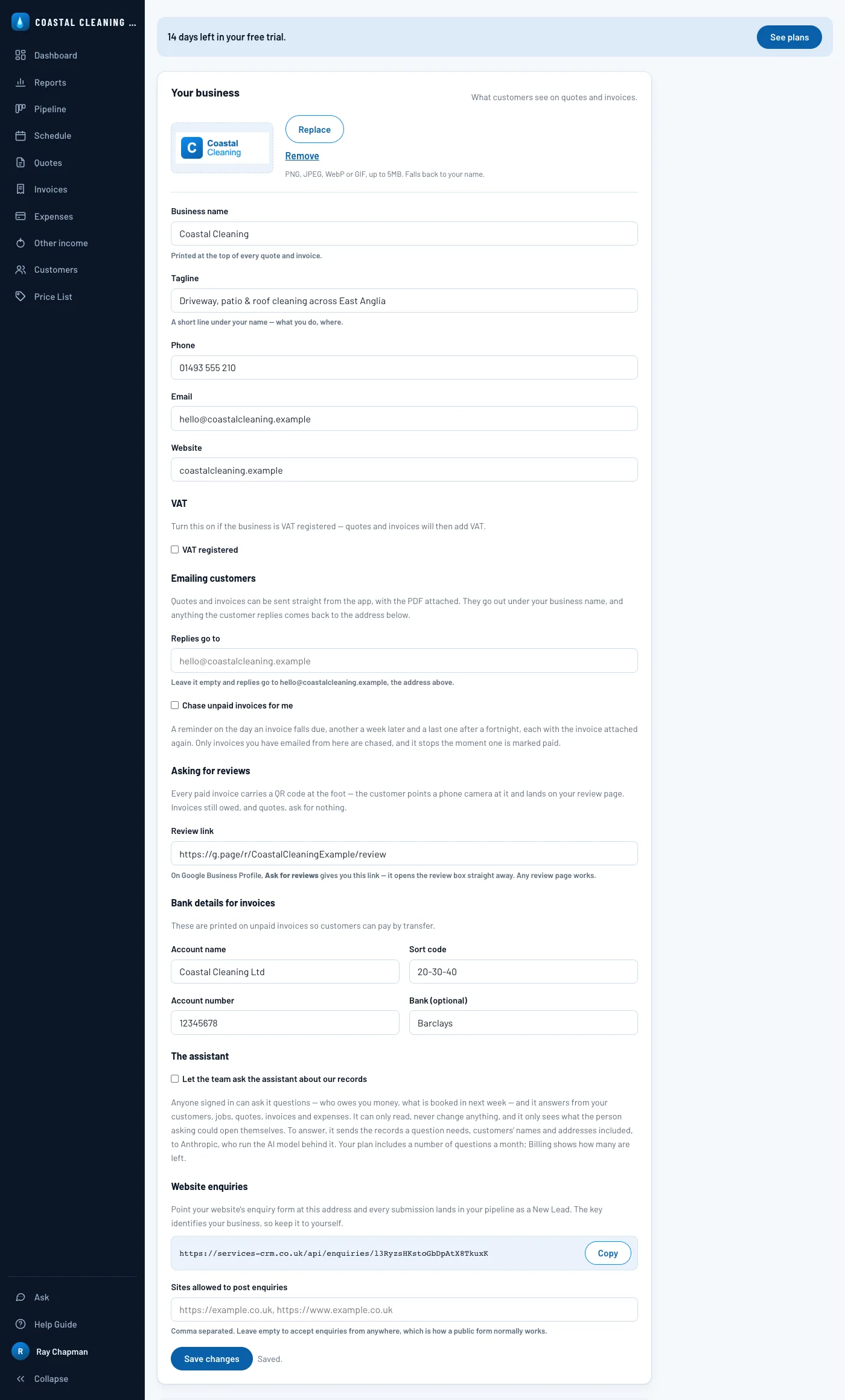
Click Save changes and you're done. Your own password lives in the Your sign-in card at the foot of this same screen — changing it signs out every other browser you're signed in on.
Take card payments with Stripe
Under the main form is a separate panel, Card payments. Connect your own Stripe account there and every unpaid invoice you send carries a Pay now link — in the email, and on the PDF as a button and a QR code. The money goes straight into your Stripe account; none of it passes through us, and we take nothing from it. When a customer pays, the invoice marks itself paid, Stripe's fee is recorded as an expense, and you get an email saying so. It's optional: without it, invoices ask for a bank transfer.
To make those payment pages the CRM needs an API key from your Stripe
account. Stripe has two kinds. A secret key (it starts
sk_live_) can do anything on your Stripe account. A restricted key
(it starts rk_live_) can only do what you allow. Both work here, but use a
restricted key: if it ever got out, all anyone could do with it is make payment pages
for you and look at your takings.
Create the key in Stripe
- Sign in to your Stripe Dashboard and open Developers → API keys.
- Choose Create restricted key. If Stripe offers a ready-made set of permissions, start from none instead.
- Name it something you'll recognise later, such as Services CRM.
- Set the permissions in the table below and leave everything else at None.
- Choose Create key, complete Stripe's verification, and copy the key. Stripe only shows it once, so copy it before closing the window.
| Permission in Stripe | Set to | What it's for |
|---|---|---|
| Checkout SessionsCheckout | Write | Required. Makes the page your customer pays on, and checks afterwards that they really paid. Write includes read. The CRM won't accept a key without it. |
| Payment IntentsCore | Read | Follows a payment through to the fee Stripe took for it. |
| Charges and RefundsCore | Read | Reads the card charge the fee was taken from. |
| BalanceCore | Read | Reads the fee itself, from your Stripe balance, so it can be written down as an expense. |
| Balance transaction sourcesCore | Read | Goes with Balance: together they let the CRM read that fee. |
Only Checkout Sessions is essential. The four Read permissions let the CRM record Stripe's fees for you. Without them, customers can still pay, and the invoice still marks itself paid, but you'd have to enter each fee as an expense yourself. All four are read-only: they can't move money or change anything in your Stripe account.
Connect it in the CRM
- Open Business settings and scroll to Card payments. Only owners and admins can do this.
- Paste the key into Stripe secret key. A restricted key goes in the same box.
- Choose Connect Stripe. This panel has its own button and isn't part of Save changes above it.
The CRM tests the key with Stripe before saving it, so a key that won't work is turned away now rather than when a customer tries to pay. Once it's accepted, the panel says Connected to Stripe, whether it's a test or a live key, and the key's last four characters. The key is stored encrypted, and those four characters are all of it you'll see again. Pay links go on from then on. Untick Put a pay link on my invoices to pause them without losing the key, use Replace key to paste a new one, or use Remove key to disconnect Stripe. Payments already taken stay on their invoices.
Take enquiries from your website
The last thing in Business settings is Website enquiries, and the address shown there belongs to your account alone. Anything posted to it becomes a New Lead in your pipeline: the customer is created for you if they are new, and the job they described waits in the first column to be priced. Choose Copy to put the address on your clipboard. It looks like this, with your own key on the end:
POST https://services-crm.co.uk/api/enquiries/7Qw3nT1xK9pR2mB8vZ4dIt is the only address of ours open to the world, and it only ever writes. It answers
{ "ok": true } and never a word about your business — which is why a wrong
key and a lapsed account give exactly the same answer as each other.
What to send
Post JSON, with a Content-Type: application/json header. Only two of the fields
are required, and every one of them is plain text. A field you have nothing for can be left
out altogether or sent as an empty string; what it must not be is null, which the
intake refuses.
| Field | Needed | What it is |
|---|---|---|
| name | Required | The customer's name, as they typed it. The lead is turned away without it. |
| Required | Matched against the customers you already hold, ignoring capitals. An address you know goes on that customer's record instead of making a second one; an address you don't creates the customer. | |
| phone | Optional | Written onto the customer if you have no number for them yet, and repeated at the top of the lead either way. |
| address | Optional | Where the work is, as one line. It becomes the site address on the lead, and fills in the customer's address if that was blank. |
| service | Optional | What they are asking for — whatever your form offers, such as Driveways & Patios. It heads the lead's notes. Left out, they say General enquiry. |
| message | Optional | What they typed in the big box, kept whole under the rest of the notes. |
| photos | Optional | Up to five pictures of the job. Sending photos is below. |
A form that posts to it
Any contact form can do this — the CRM asks nothing of the fields but their names. Give your form's inputs the names above and the whole of it is a submit handler:
const INTAKE =
  'https://services-crm.co.uk/api/enquiries/7Qw3nT1xK9pR2mB8vZ4d'

const form = document.querySelector('#enquiry')
const note = document.querySelector('#enquiry-note')

form.addEventListener('submit', async (event) => {
  event.preventDefault()
  const field = new FormData(form)

  const enquiry = {
    name:    field.get('name'),
    email:   field.get('email'),
    phone:   field.get('phone') || '',
    address: field.get('address') || '',
    service: field.get('service') || '',
    message: field.get('message') || '',
  }

  try {
    const response = await fetch(INTAKE, {
      method: 'POST',
      headers: { 'Content-Type': 'application/json' },
      body: JSON.stringify(enquiry),
    })
    const result = await response.json()
    if (!response.ok) throw new Error(result.error)
    form.reset()
    note.textContent = 'Thank you — we will be in touch.'
  } catch {
    note.textContent = 'Sorry, that did not send. Please ring us.'
  }
})
The || '' on the optional fields earns its keep: a box your form hasn't got
at all reads back as null, which is the one thing the intake won't take. A box
the visitor simply left empty is already an empty string and goes through untouched. The rest
is your own page — what your customer is told when it works, and when it doesn't, is
yours to write.
What comes back
A saved enquiry answers 200 with { "ok": true }. Anything else
carries an error written to be shown to the person filling the form in, which is
what the handler above puts on the page.
| Answer | Meaning | What it is telling you |
|---|---|---|
| 200 | Saved | The lead is in your pipeline. Nothing else comes back. |
| 400 | Bad enquiry | “Name and email are required.”, or one of the photo rules below. Worth showing as it is: it is the visitor's to fix. |
| 403 | Site not allowed | “Origin not allowed.” The page posting isn't on your allowed list. Yours to fix, not theirs — see below. |
| 404 | No such intake | The key is wrong, or the account it names has lapsed. Both answer the same on purpose, so a public form gives nothing away. |
| 429 | Too many | “Too many enquiries from this address. Please call us.” More than 20 enquiries in an hour from one internet connection. |
| 500 | Our end | Something went wrong here, or the request was simply too big. Nothing your visitor can do, so give them your phone number. |
Sending photos
A lead is worth a great deal more with a picture of the drive on it. Add a
photos array of up to five, each one an object with a name and the
file's bytes as base64 in data:
/** A chosen file as base64, without the prefix the browser adds. */
const readPhoto = (file) =>
  new Promise((resolve, reject) => {
    const reader = new FileReader()
    reader.onload = () =>
      resolve({ name: file.name, data: reader.result.split(',')[1] })
    reader.onerror = () => reject(reader.error)
    reader.readAsDataURL(file)
  })

// With <input type="file" name="photos" accept="image/*" multiple> on
// the form, between building `enquiry` above and posting it:
const chosen = [...form.elements.photos.files].slice(0, 5)
if (chosen.length) {
  enquiry.photos = await Promise.all(chosen.map(readPhoto))
}
That .split(',')[1] matters. readAsDataURL hands back
data:image/jpeg;base64,… and only what follows the comma is the file;
send the lot and the intake decides the bytes aren't a picture and turns the enquiry away.
Photos must be JPEG, PNG, WebP, HEIC or GIF, and 5MB or less each. SVG is refused, because
an SVG can carry code. What kind of file each one is gets read from its own first bytes rather
than from its name or anything your form says about it, so a photo straight off a phone is
fine whatever the phone chose to call it. Keep the whole request under 15MB as well: base64
is about a third bigger than the file it carries, so three photos at the 5MB limit are already
over it, and a request that big fails as a bare 500 rather than anything you
could show the visitor. If your form takes several at a time, it is worth shrinking them in
the browser before they are sent.
Decide which sites may post
Under the address is Sites allowed to post enquiries. Left empty, the
intake accepts an enquiry from any site, which is how a public form normally works. Fill it in
with the addresses your form is served from — comma separated, each with
https:// on the front — and a browser anywhere else is refused with the
403 above. List every spelling your site answers on: to a browser
https://coastalcleaning.co.uk and https://www.coastalcleaning.co.uk
are two different places, and so are http and https.
However that list is set, no more than 20 enquiries an hour are taken from any one internet connection, so a form found by a bot cannot fill your pipeline overnight.
People
Add your team
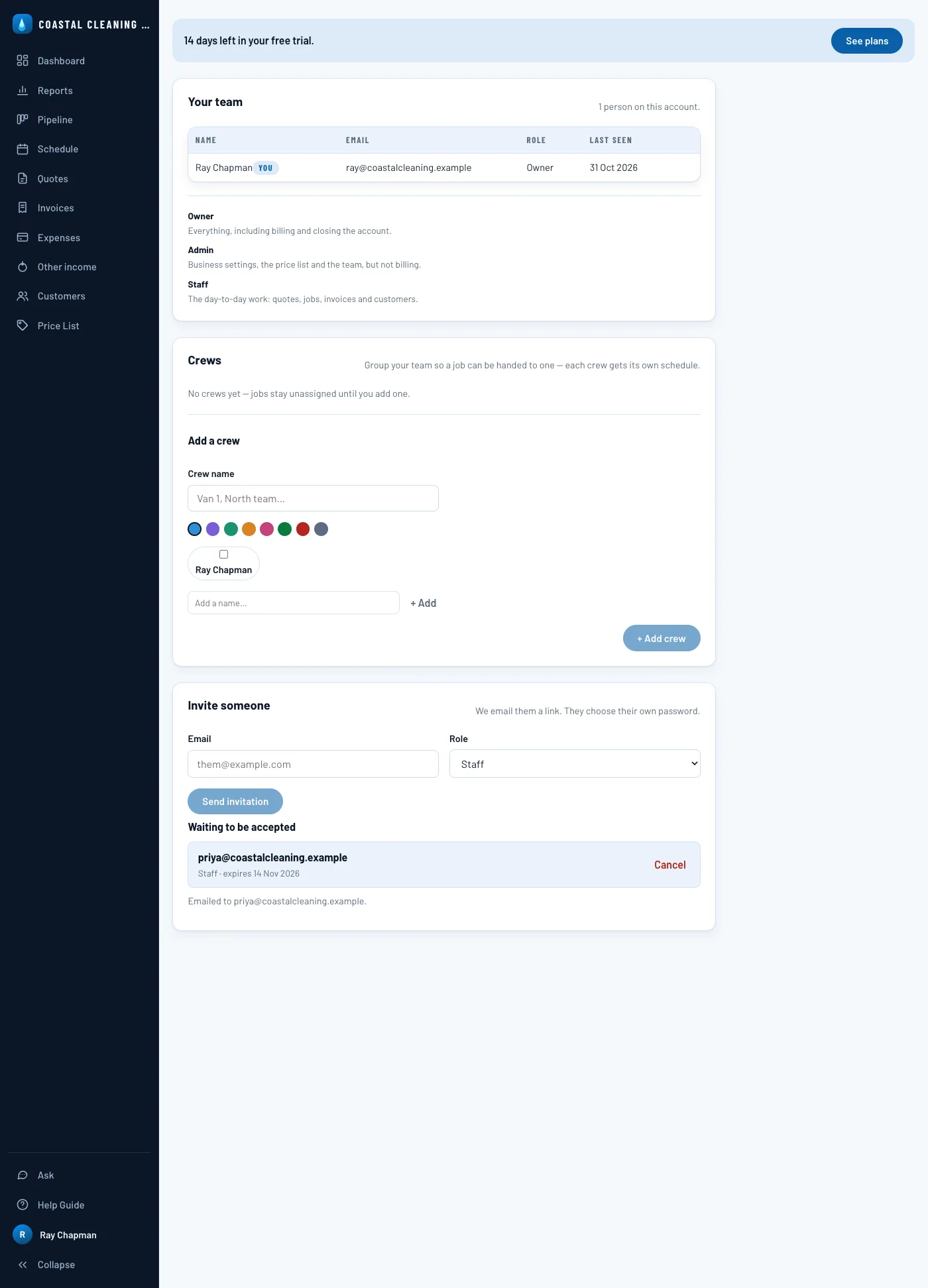
Open Team to see who's on the account and to bring others in. Three roles cover everyone, and the screen explains each: an owner can do everything, an admin runs the business settings, price list and team but not billing, and staff do the day-to-day work.
Under Invite someone, fill in their email address and a role, then Send invitation. We email them a link; it works once and lasts 14 days, and until it's used the invitation waits under Waiting to be accepted, where you can cancel it.
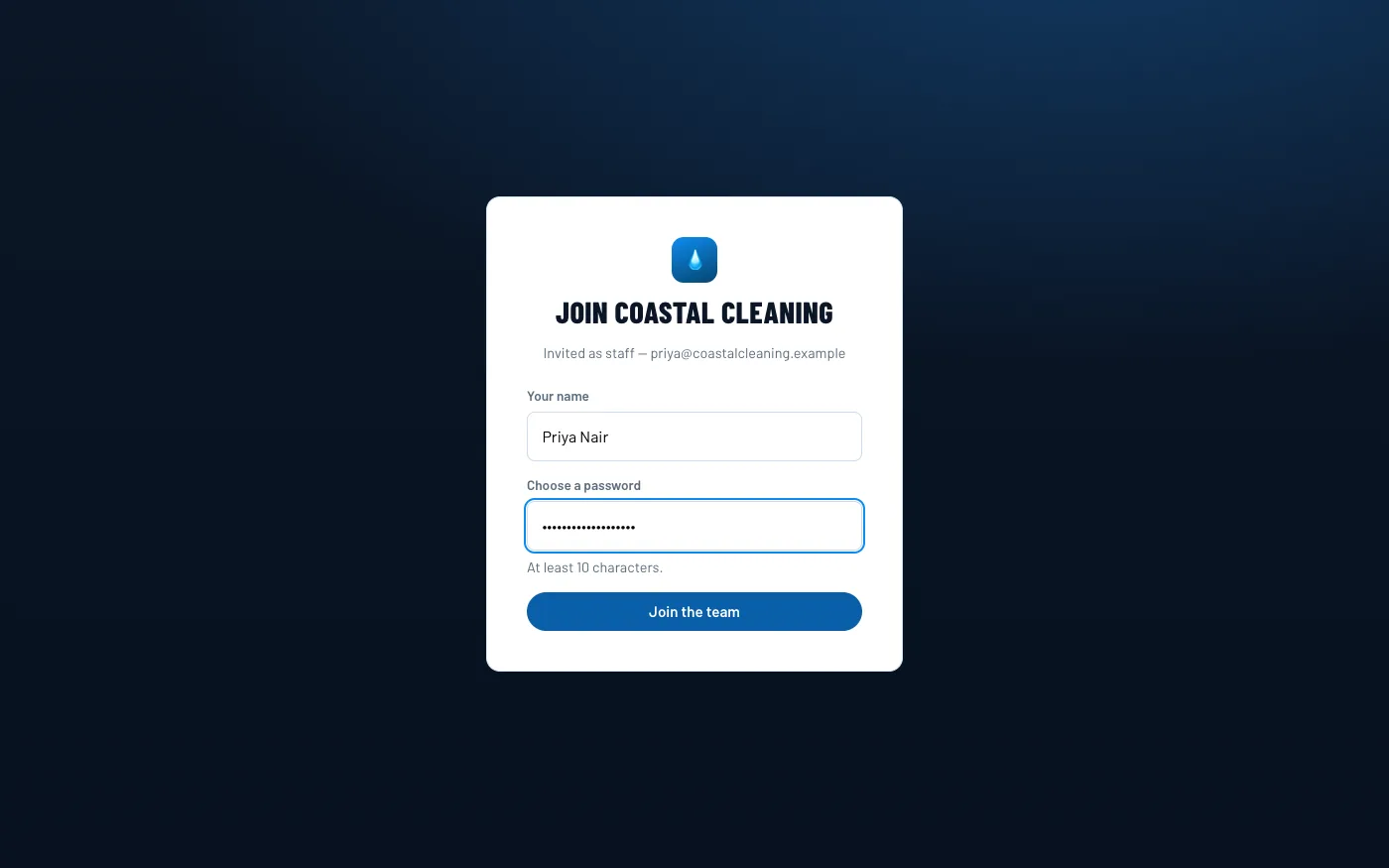
The link opens a page where they choose their own name and password. Once they've joined, they're a full member of the team — ready to be put on a crew.
Owners and admins also have Activity in the same menu: every quote sent, invoice paid, setting changed and sign-in, with who did it and when — including the reminders and repeat visits the CRM sent or booked on its own.
Who does the work
Group your team into crews
A crew is one or more people who work jobs together — a van, a pairing, a whole department. Crews are set up on the Team screen, in the Crews panel: give one a name and a colour, then tick who's on it. Someone who isn't on the CRM, like a subcontractor, can be added by name.
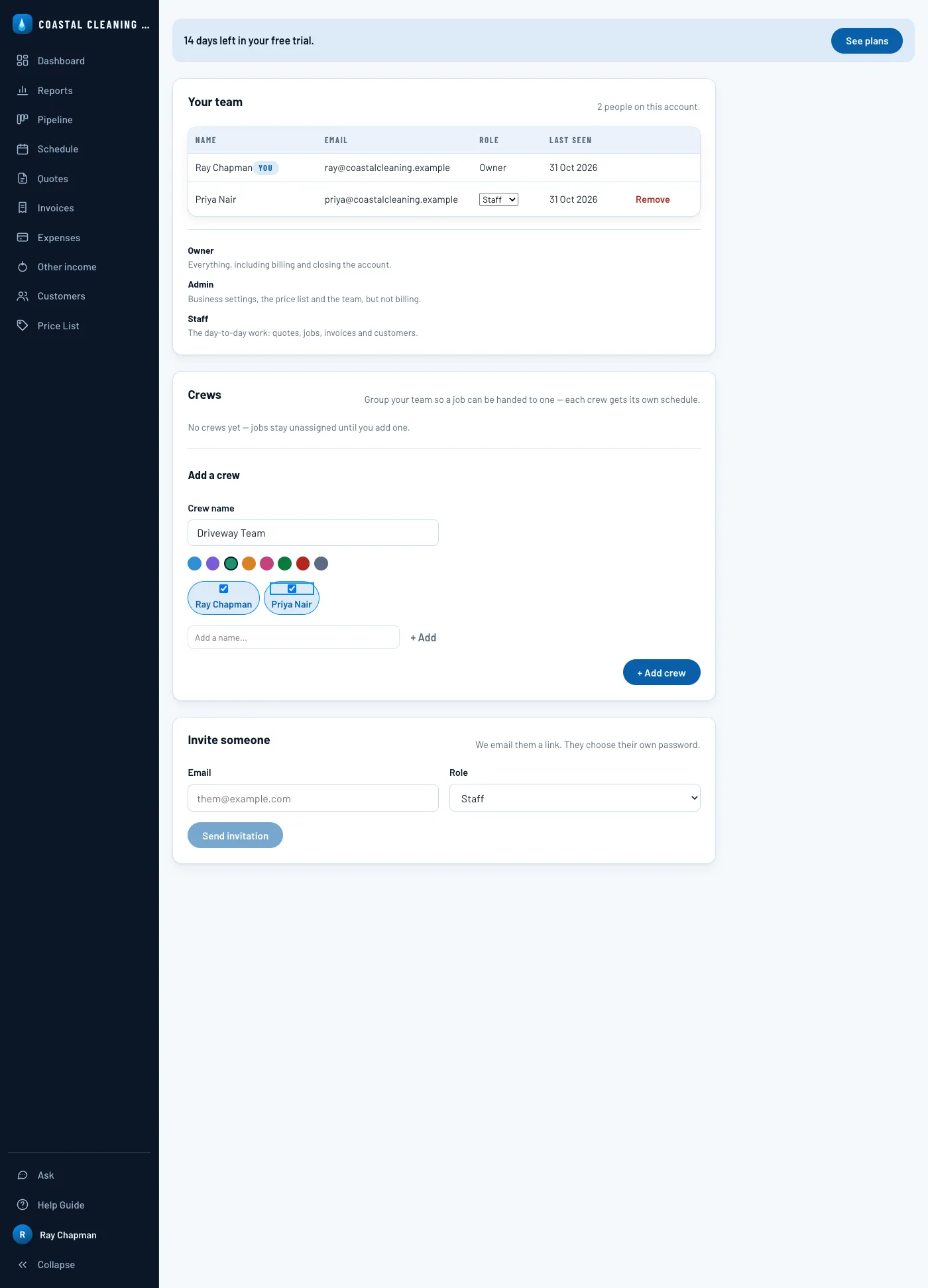
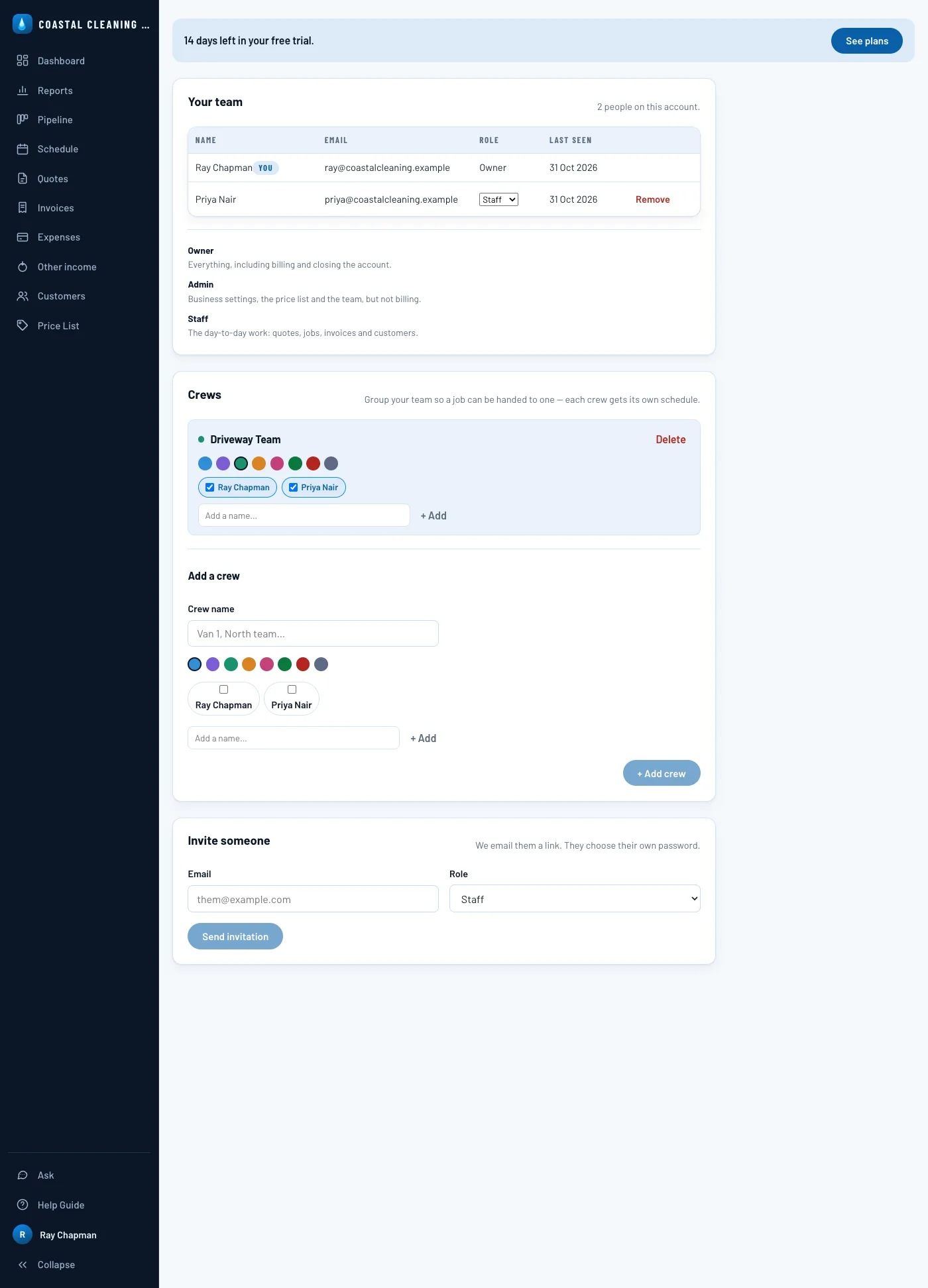
+ Add crew and it appears above, ready to rename, recolour, or hand jobs to. Everyone on the account can see the crews; only an owner or admin can change them. Removing someone from a crew, or deleting the crew entirely, never touches work that already happened — a deleted crew's jobs simply fall back to unassigned.
What you charge
Build your price list
Every new account starts with a sample price list already in place — driveway and patio cleaning, roof and gutter work, window cleaning by the visit, a minimum call-out charge — so there's something to quote from immediately and edit into shape.
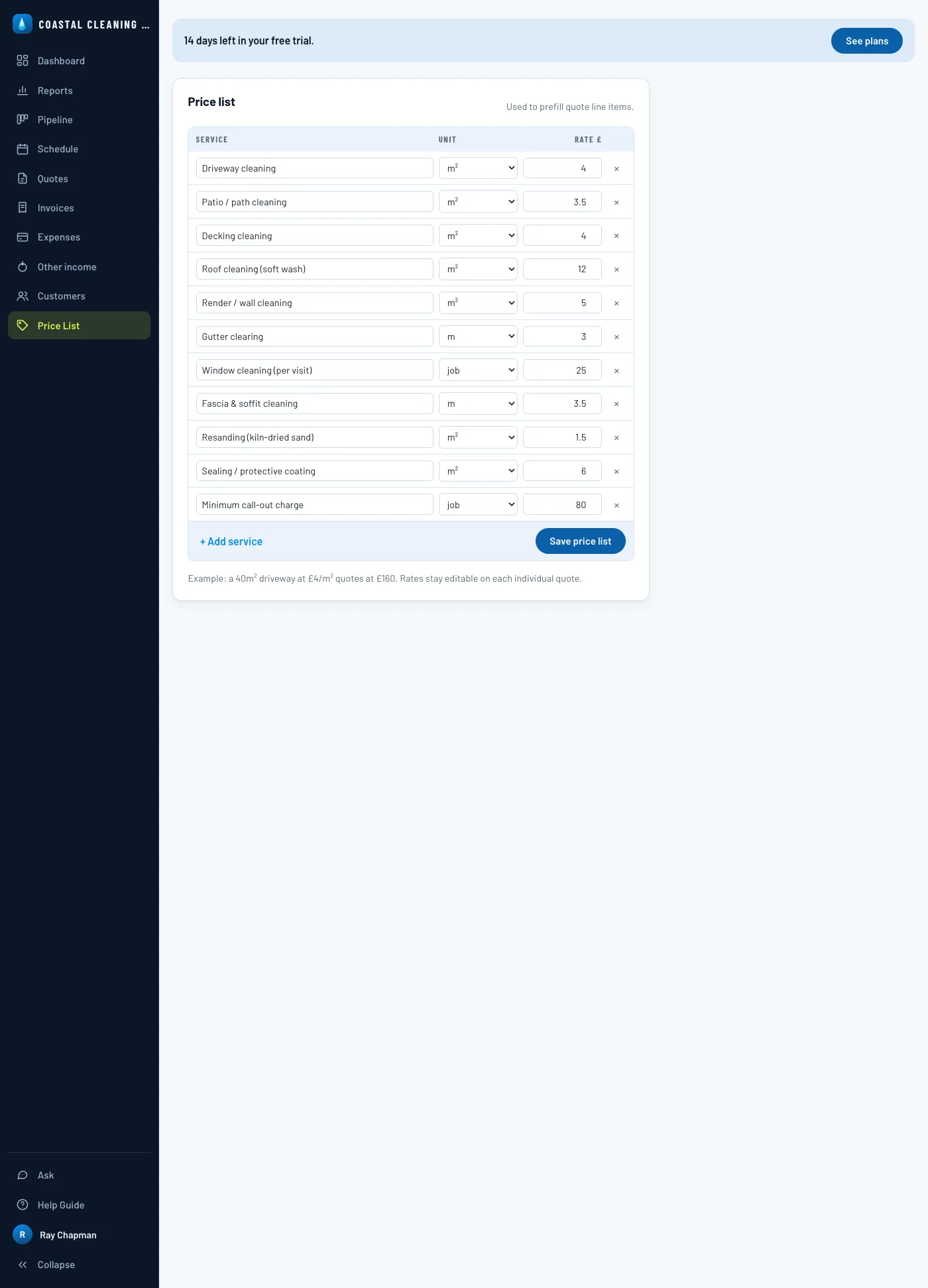
Rename rows, change the unit (per m², per metre, each, per hour, or a flat job rate), and set the rate. Remove what you don't offer with the × on each row, and + Add service for anything missing. Nothing here is final: rates stay editable on each quote, so this list is a starting point, not a ceiling.
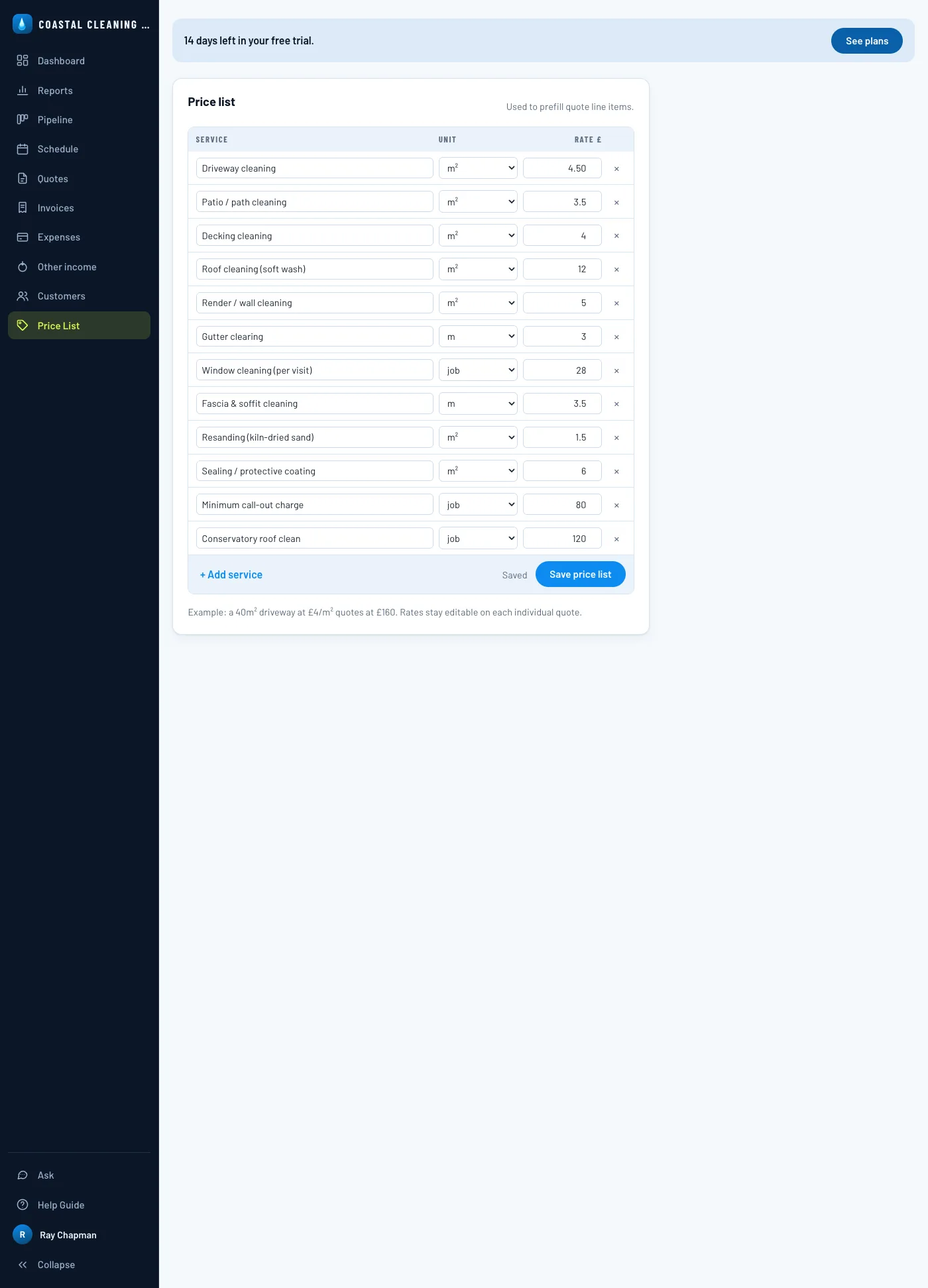
Save price list and it's live — every new quote line can be filled straight from here. Only owners and admins can change these rates; staff see them read-only.
Who you work for
Add a customer
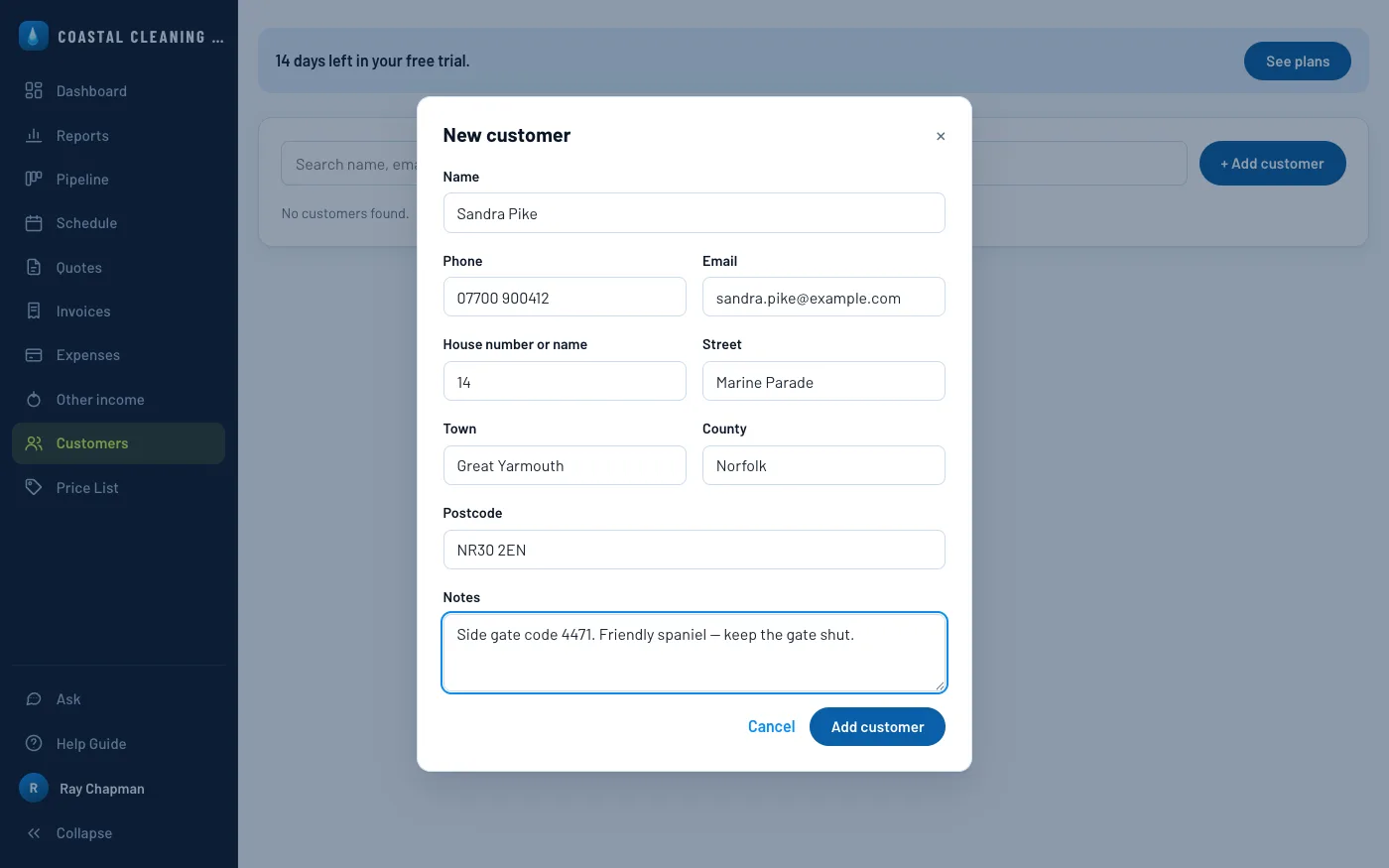
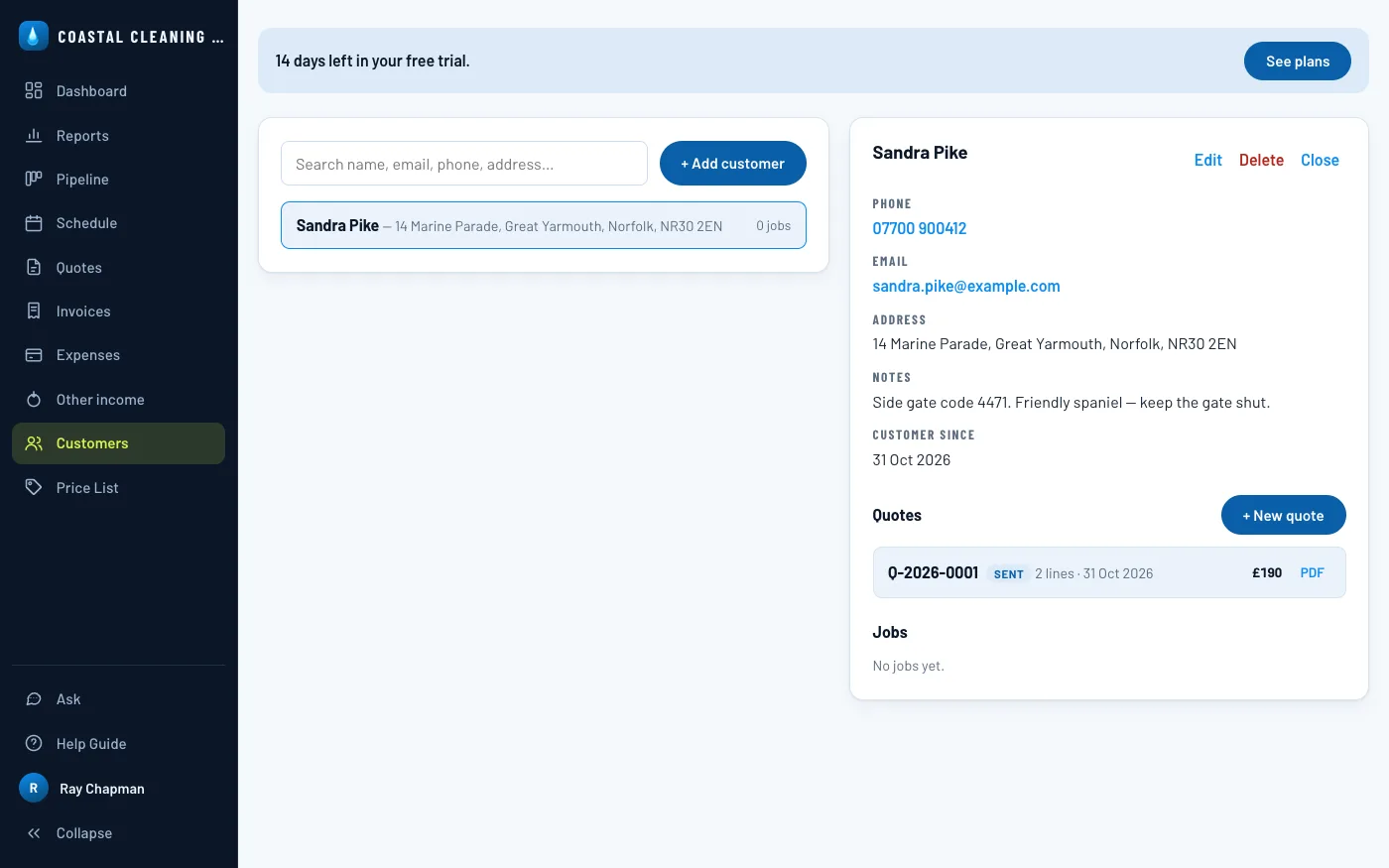
Customers usually arrive as website enquiries, but adding one by hand is just as quick. On the Customers tab, + Add customer and take down their name, phone, email, their address in parts — house number or name, street, town, county and postcode — and anything worth remembering: a gate code, a dog, a preferred day.
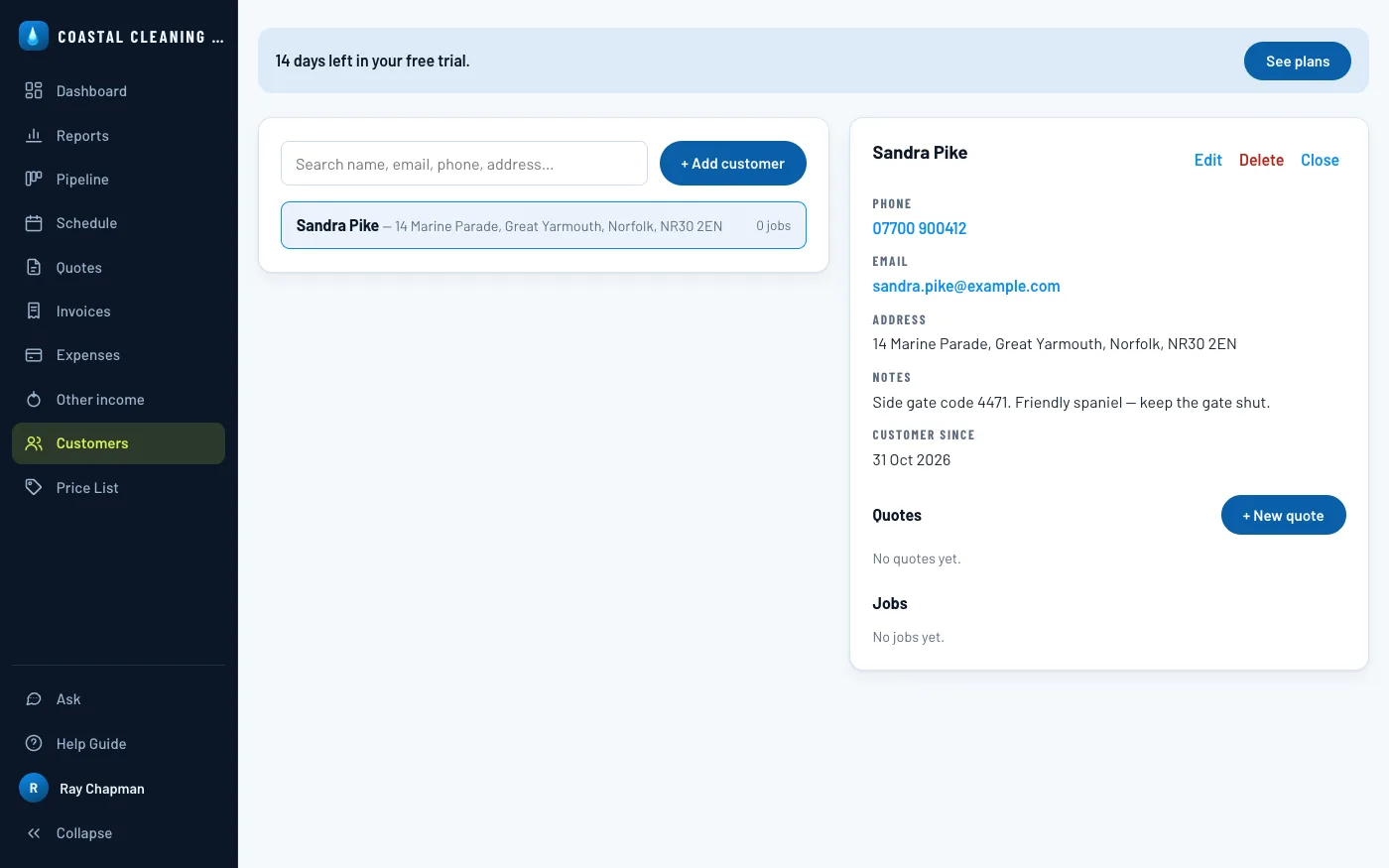
Open them from the list to see their record — contact details, notes and, as you work with them, every quote, job and invoice they've ever had. The list searches by name, email, phone or address.
Pricing the work
Create & send a quote
From a customer's record, + New quote. Pick a line from your price list and it fills in the description, unit and rate — you just add the quantity. Add as many lines as the job needs with + Add line, and put anything about access or what's included in the notes, which print on the quote.
Firms, letting agents and councils usually raise a purchase order and want its number on the paperwork. Put theirs in Purchase order and it prints on the quote, then follows through onto the invoice when the job is billed. Leave it empty for everybody else — a quote with nothing in it says nothing about purchase orders at all.
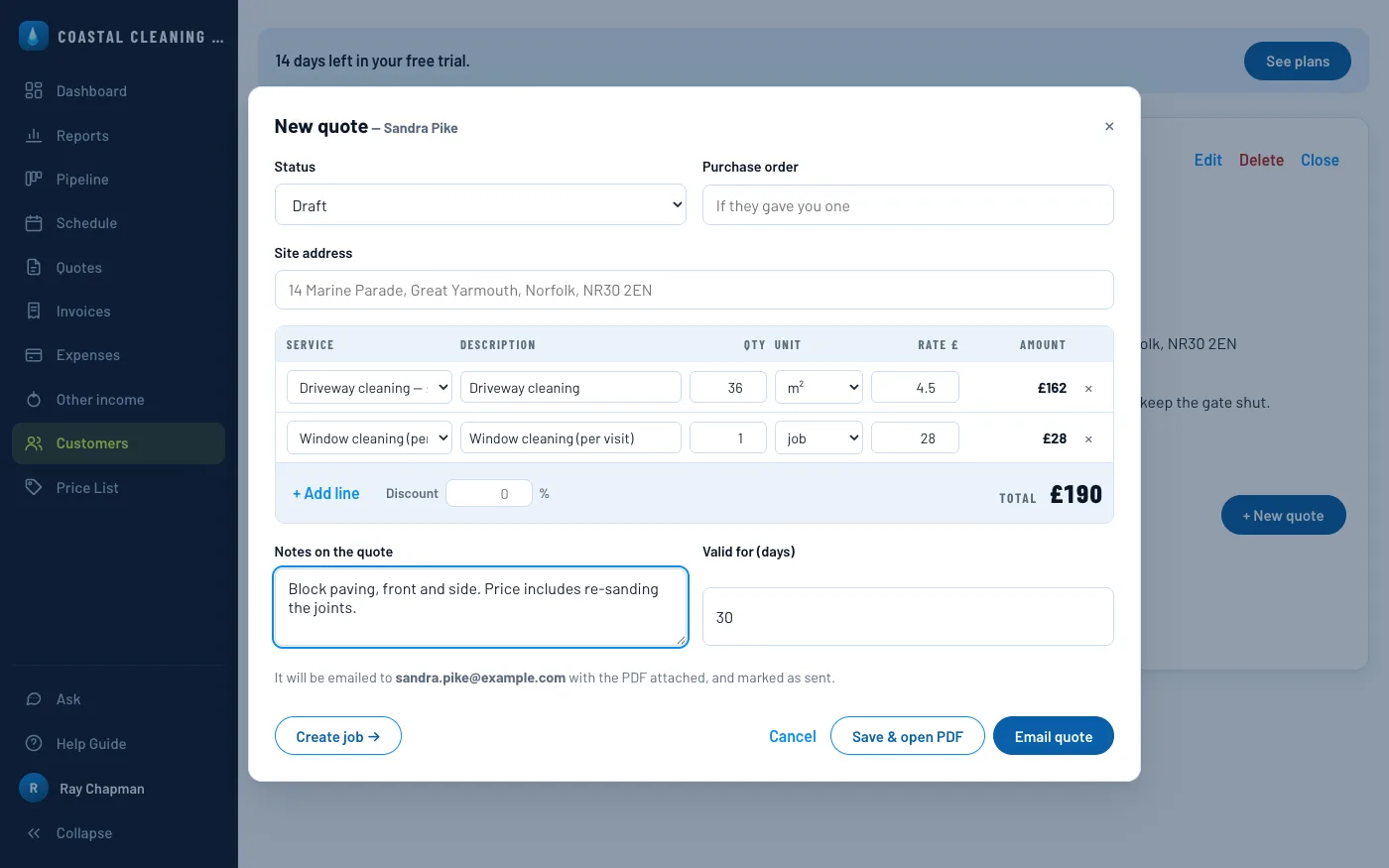
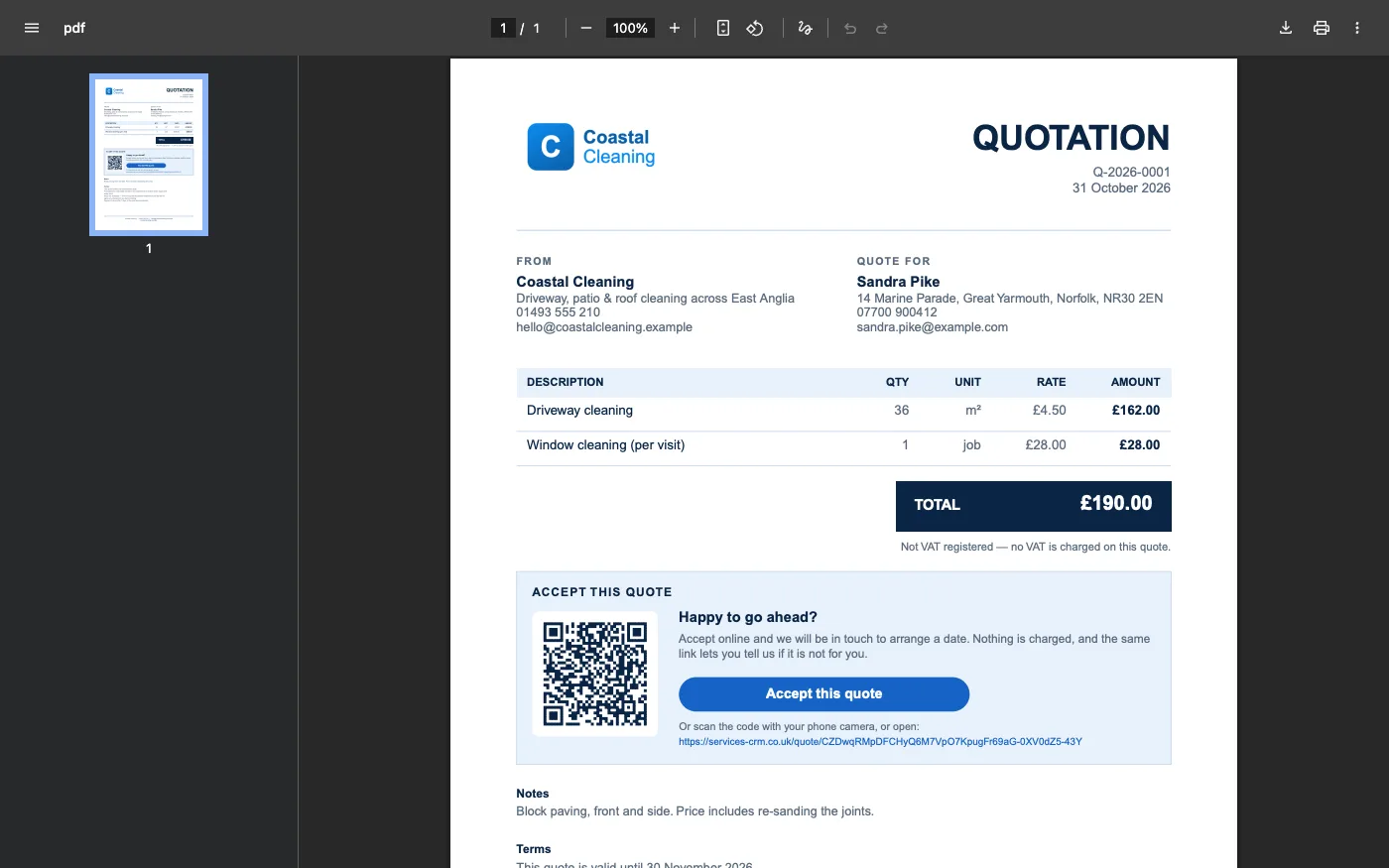
Pricing it and sending it is one press: Email quote saves it, emails the customer a branded PDF, and marks it Sent. If you'd rather send it yourself, Save & open PDF gives you the same document to print or attach.
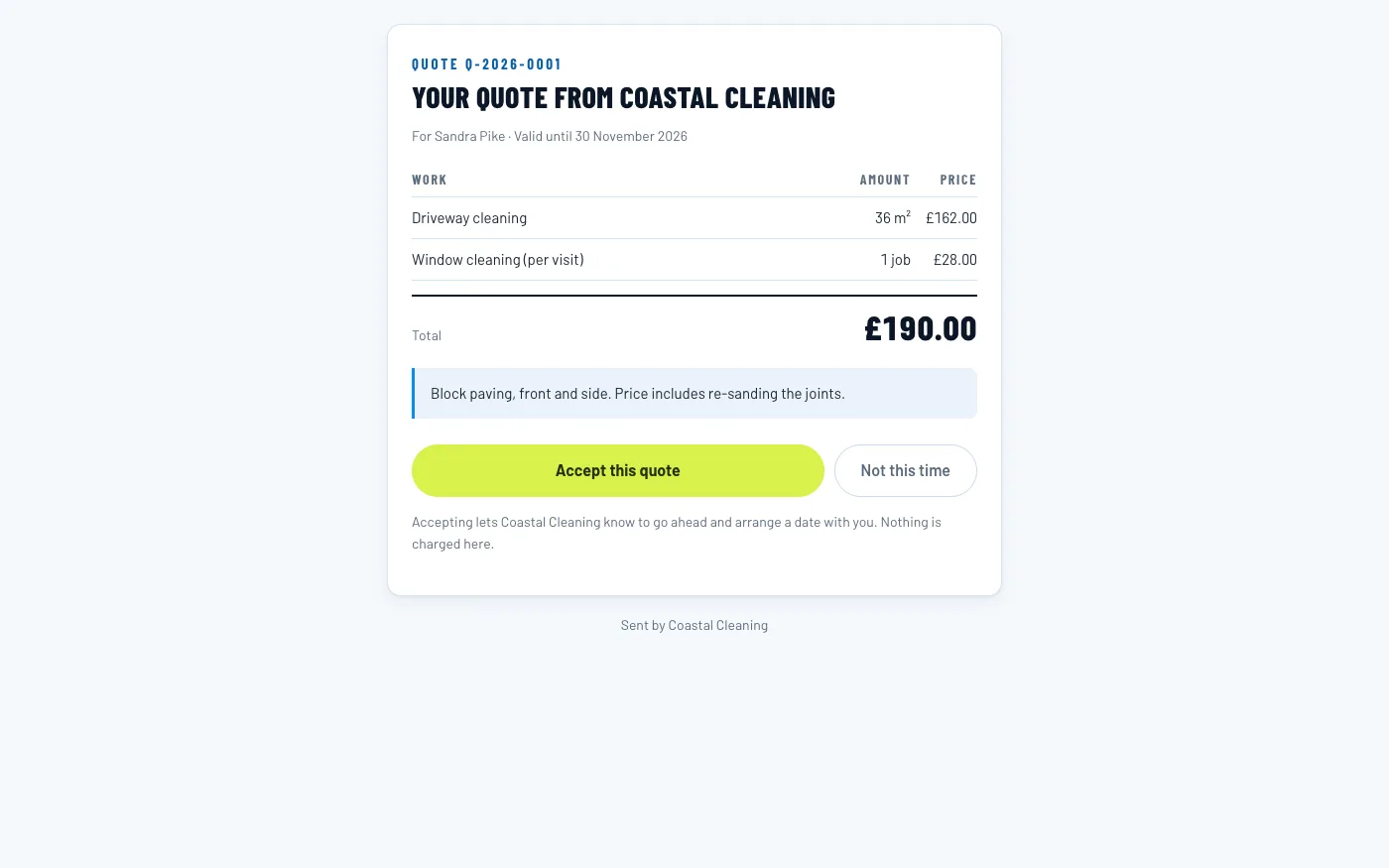
The email carries a link where the customer can answer the quote — no account, no password. Accept this quote tells you to go ahead; Not this time declines it, with a reason if they want to give one.
The same link is on the PDF, as a button and as a QR code, so a quote that's been saved, forwarded or printed can still be accepted from the page itself. A copy you open with Save & open PDF carries it too. Each time you email the quote it gets a fresh link, and copies opened after that carry the new one. Once the quote is accepted or declined, or its date has passed, the PDF stops offering it.
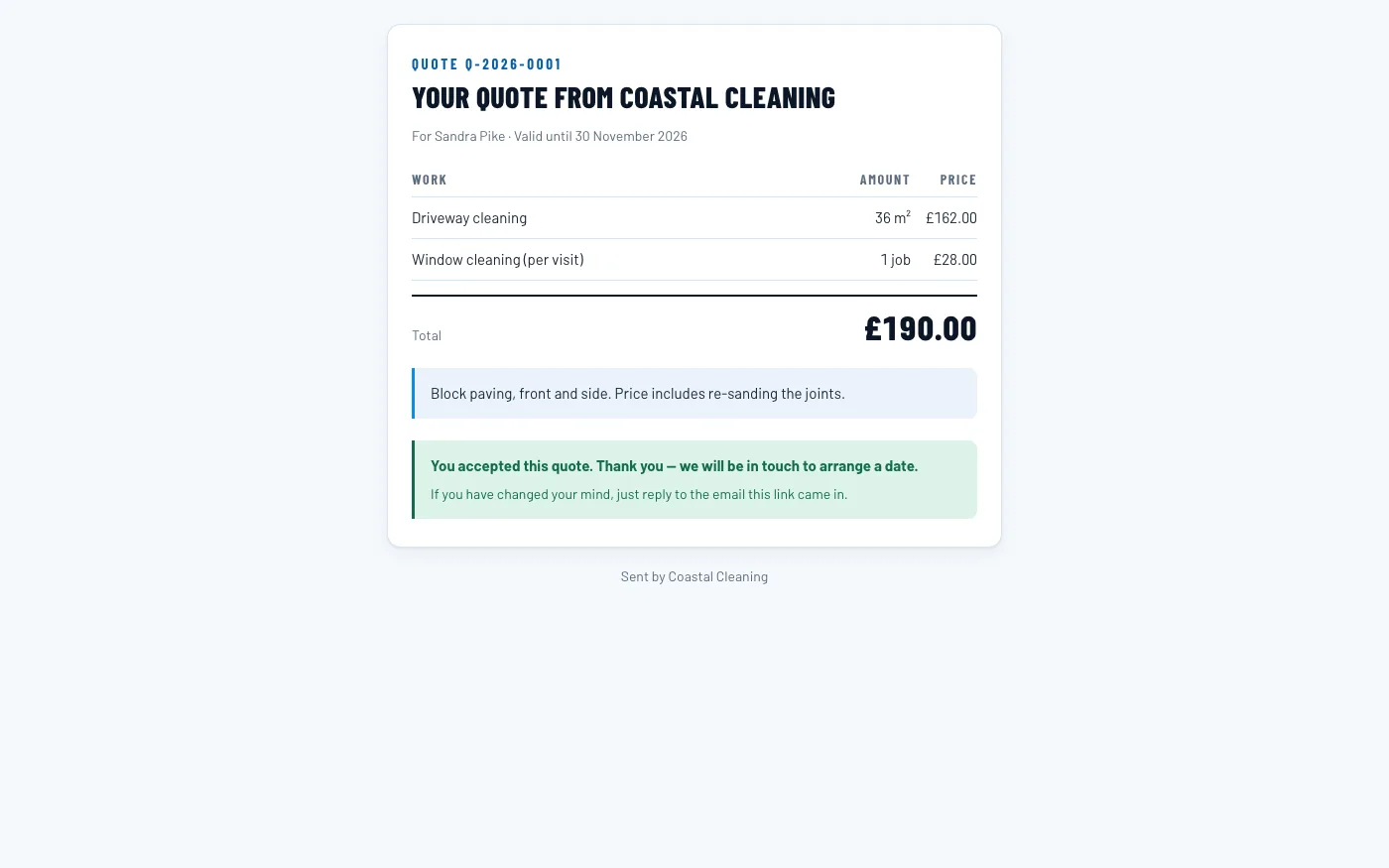
Once it’s accepted
Turn the quote into a job
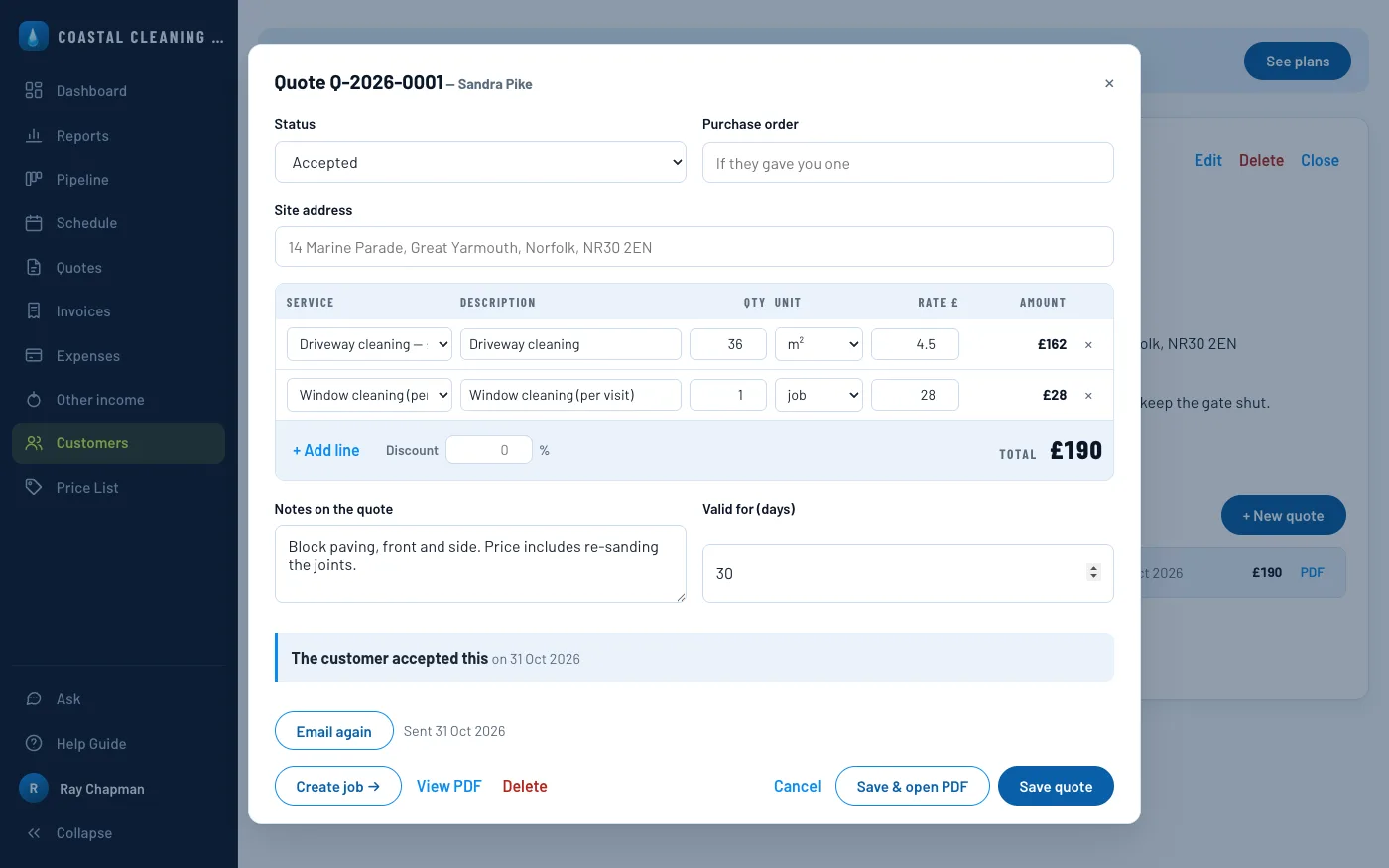
Work never exists without a priced quote behind it — a job is always created from a quote. Reopen the quote and you'll see the customer's answer, with the date they gave it; a quote with no job yet has a Create job → button.
The job opens filled in from the quote's lines — you just book it: which crew, the date, a start time and how long it takes, so it sits in the right slot on the schedule. For work that comes round again, set how often under Repeats: the next visit is booked when this one comes round, at the same time, with the same crew and price.
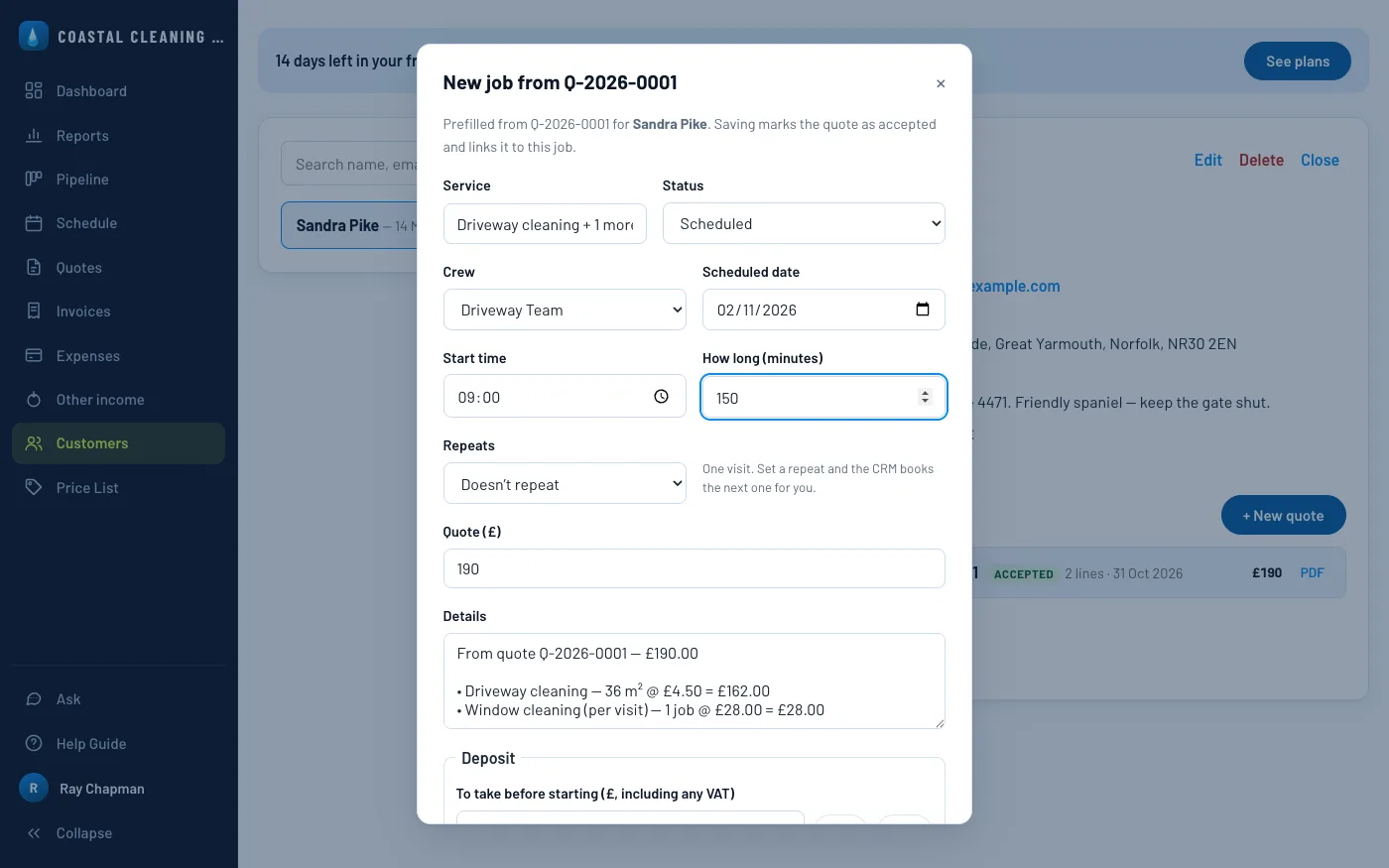
Once it has a date, the box at the foot of the form is ticked for you: saving emails Sandra her booking — what the work is, the day and the hour, about how long it takes and the address — with any reply coming straight back to you. Untick it if she has already agreed it on the phone. Move the job to another day later and the box is ticked again: saving emails her that her booking has moved, with the new day and the old one crossed out.
To take a deposit before starting, enter it under Deposit, or press 25% or 50% of the job, and tick the box to ask for it. The request goes in the booking email, with your bank details and, if you have connected Stripe, a link to pay by card. A deposit paid on the link records itself. If the money reaches you another way, open the job and press Record received. Either way the customer gets a note saying it arrived, the board shows the deposit as paid, and the invoice takes it off what they owe when the work is done.
Where the day-to-day happens
See it on the schedule & pipeline
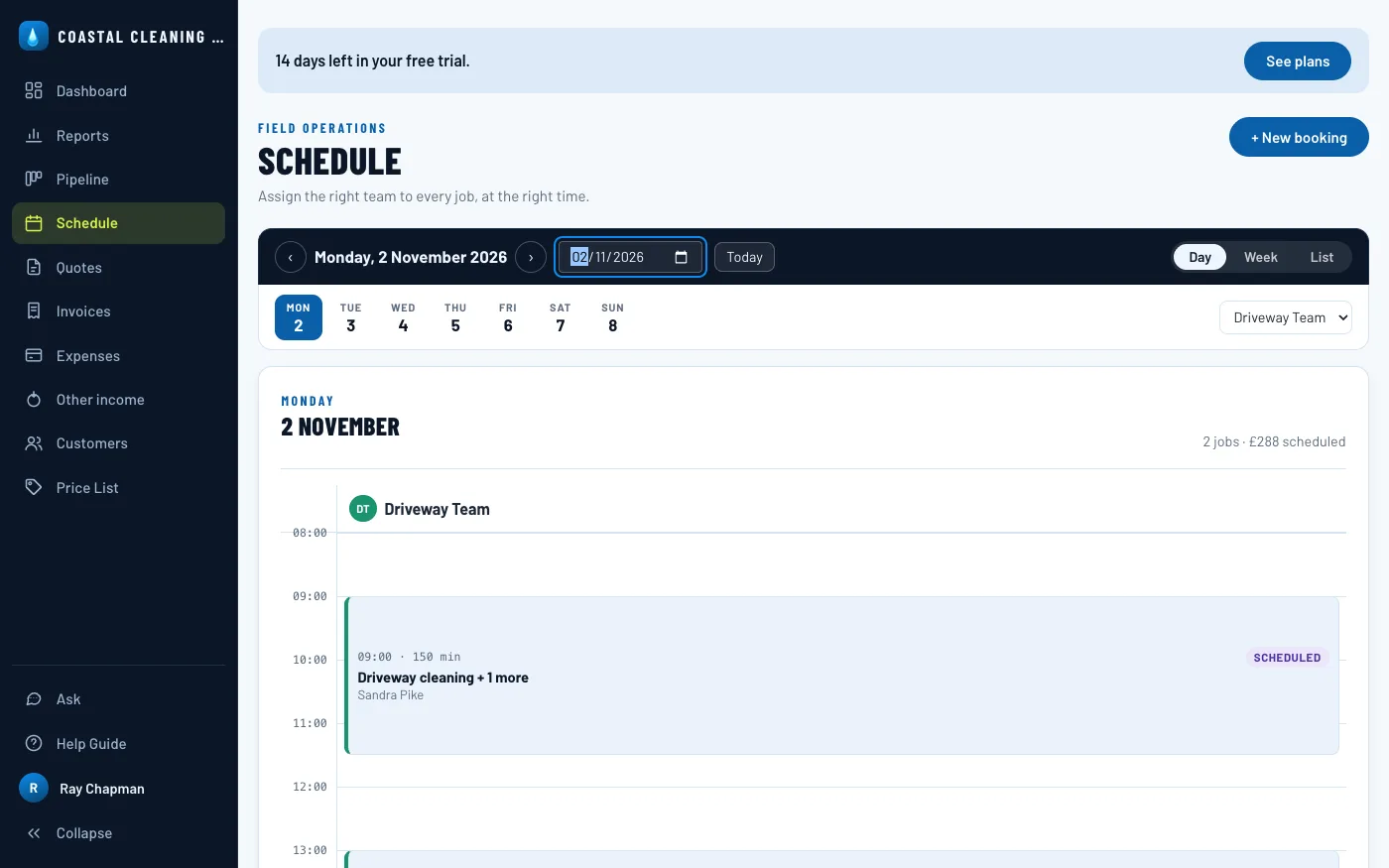
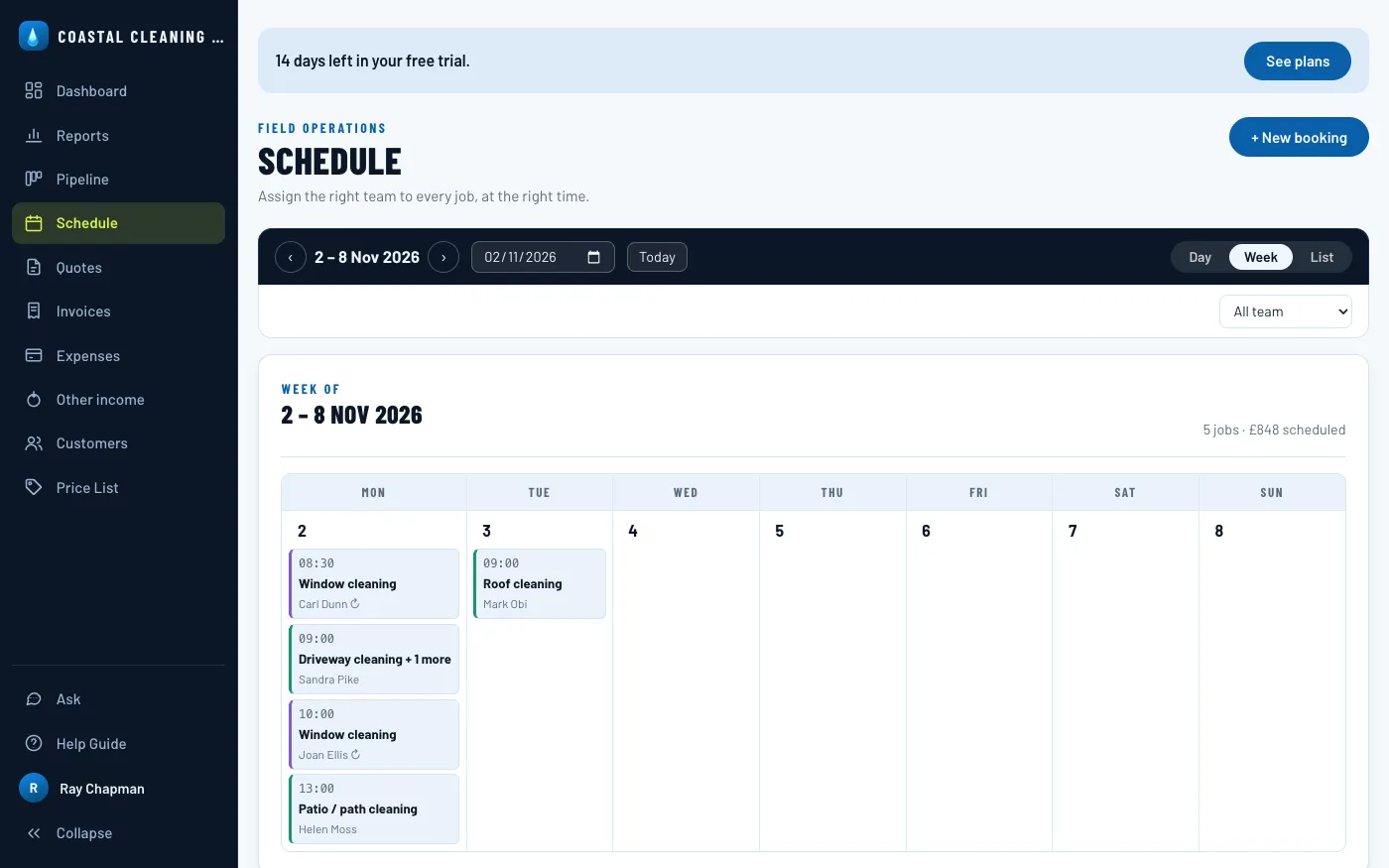
Once a job has a date, it's on the Schedule. Day lays the day out by the hour with a column per crew, so you can see who is where and when, each job sized to the length of the visit. Week shows seven days at a glance and List reads a month top to bottom. Work with no date yet waits under Needs a date, so nothing slips through, and repeating work is marked ↻.
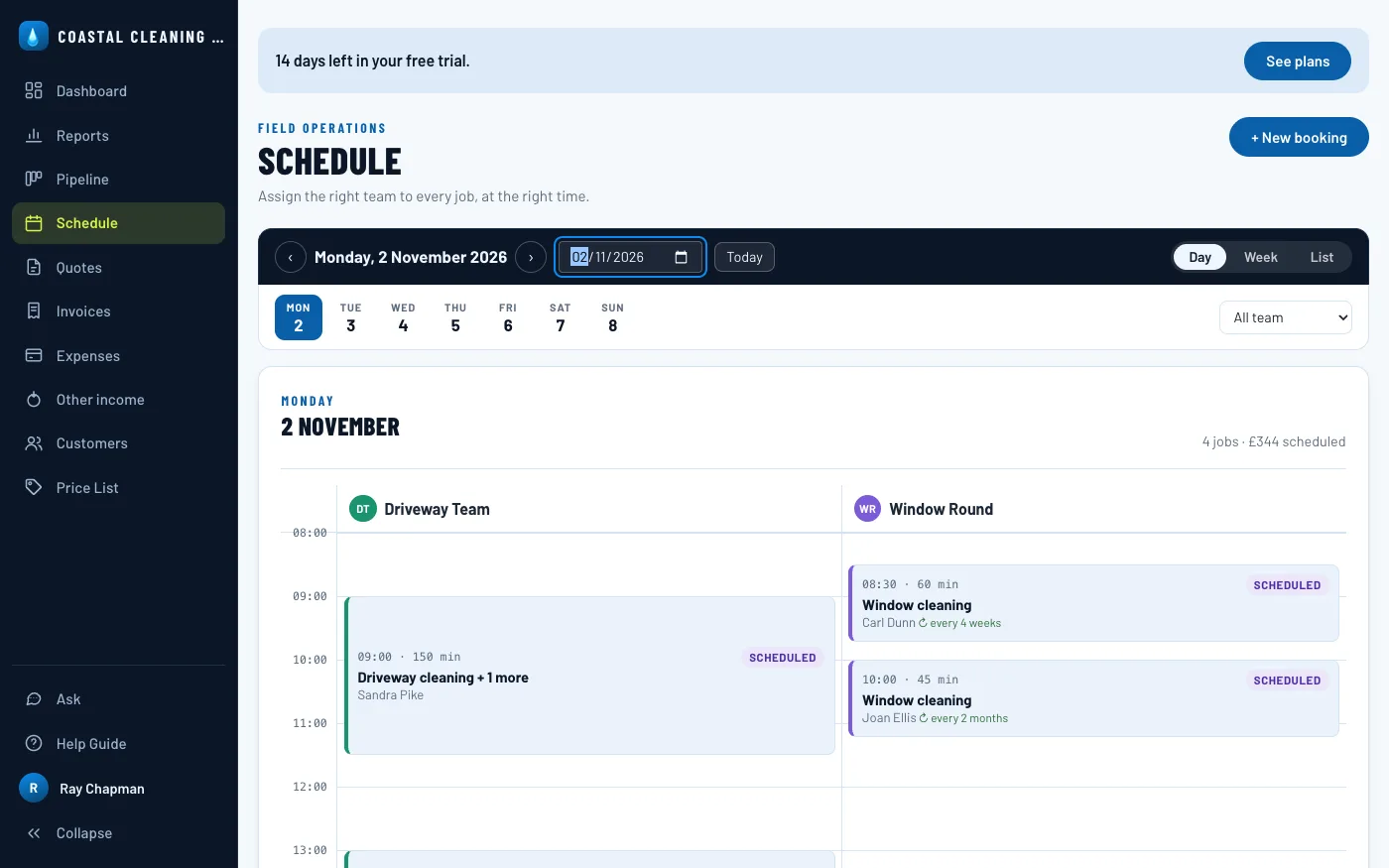
Every crew can read just its own schedule, too — the picker above the grid switches between All team and each crew by name.
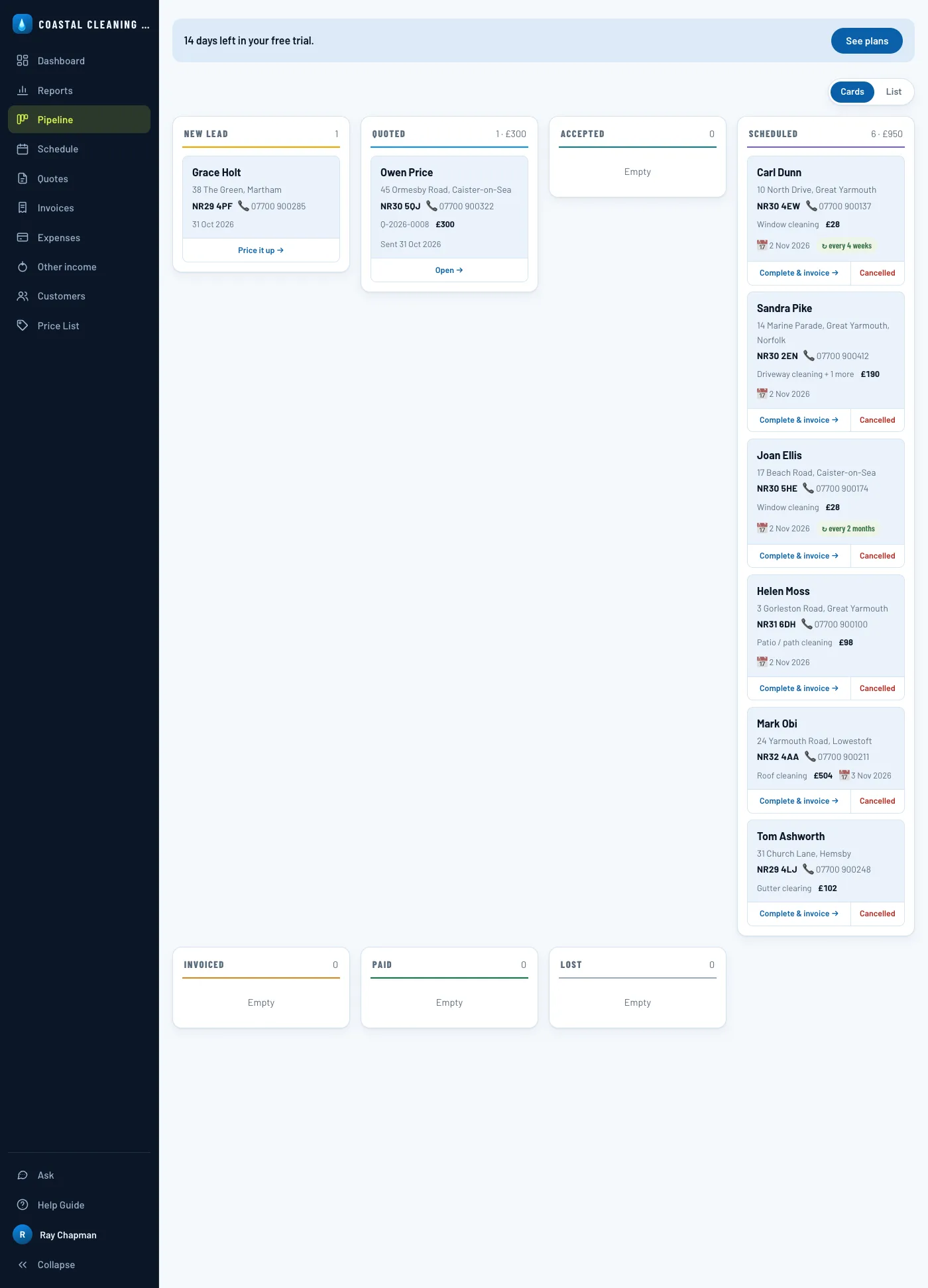
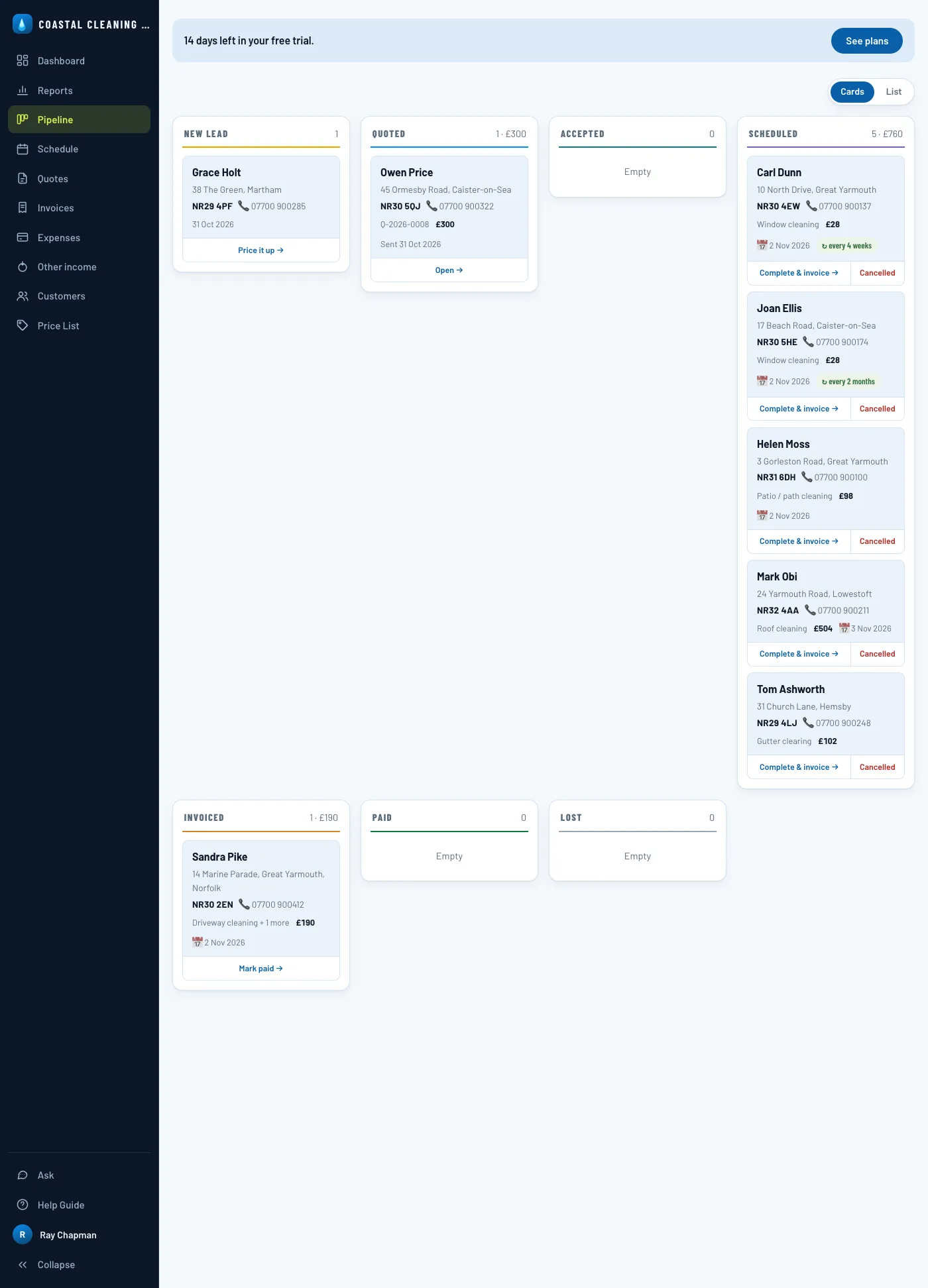
The Pipeline is the whole business on one board: New Lead, Quoted, Accepted, Scheduled, Invoiced and Paid, with Lost for anything that fell through. Every card has the next step on it — price a new lead, open a quote, complete a job. If you'd rather read it top to bottom, switch from Cards to List: every stage becomes a section of rows, and any section you don't need folds away with a click on its name.
After the work is done
Complete the job & invoice it
When the work is finished, press Complete & invoice → on its card in the Pipeline, or mark it completed in the job itself. That one press is the whole of billing it: the invoice is raised from the quote's lines, so the customer sees exactly the figures they agreed to, on 7-day terms, and it's emailed to them with the PDF attached. There is no "done but not billed" to forget about.
The invoice tells the customer both ways to pay: by bank transfer, with your bank details and the reference to quote, and by card. If you've connected Stripe under Business settings, that's a pay-by-card link and a QR code on the invoice itself; if not, it asks them to call you.
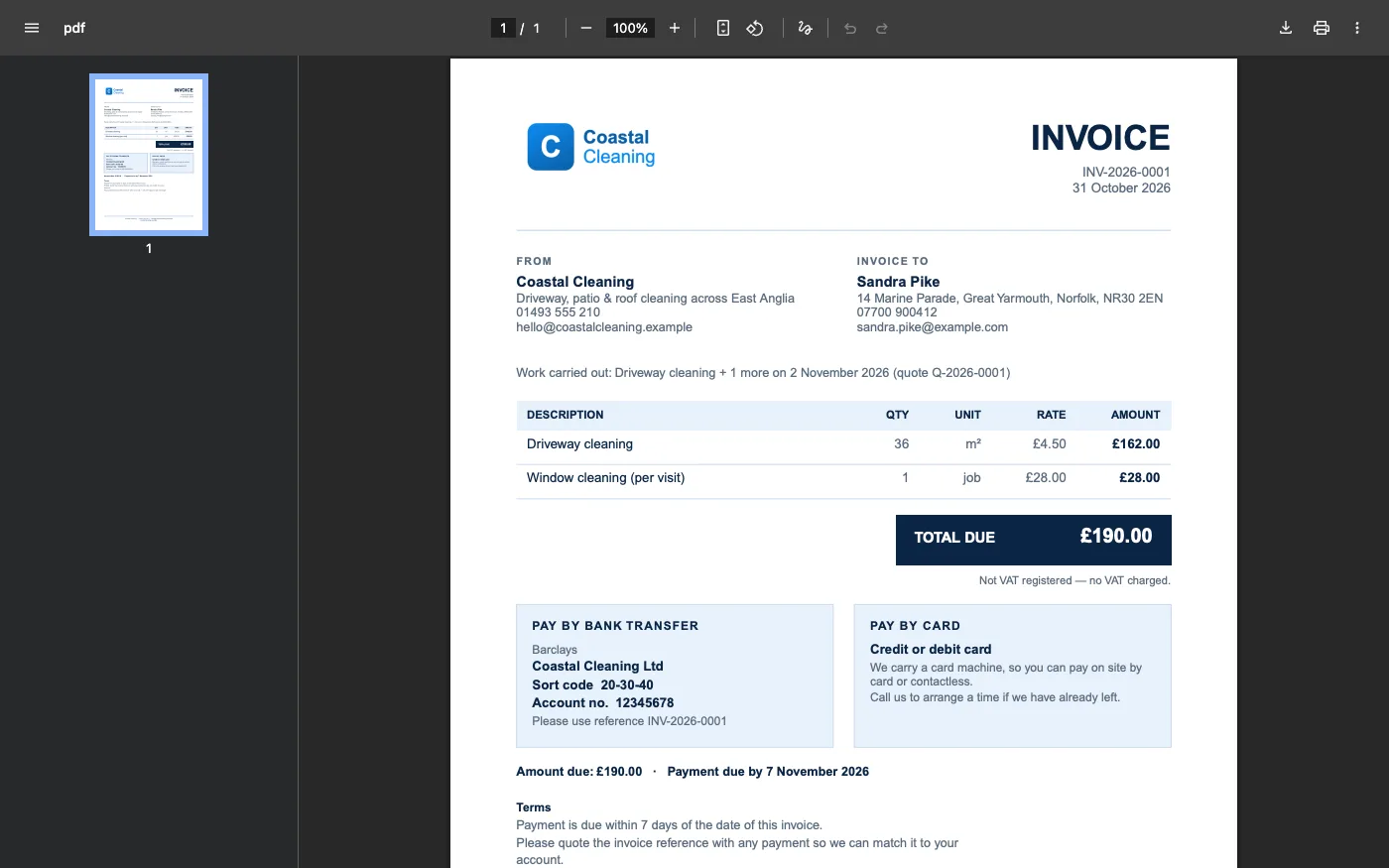
A customer with no email address gets nothing sent: the invoice opens instead, so you can print it or pass it on. And if you've asked the CRM to chase unpaid invoices, it reminds the customer on the due date, a week later, and a fortnight later, stopping the moment it's paid.
The order number from the quote is printed on the invoice. If it only reaches you afterwards — which is the usual way round — open the invoice and fill in Purchase order there. It is the one thing on a raised invoice you can change, since the number is the customer's, not yours; everything else on it is what you billed. Email the invoice again and the copy they get carries it.
Closing the loop
Get paid
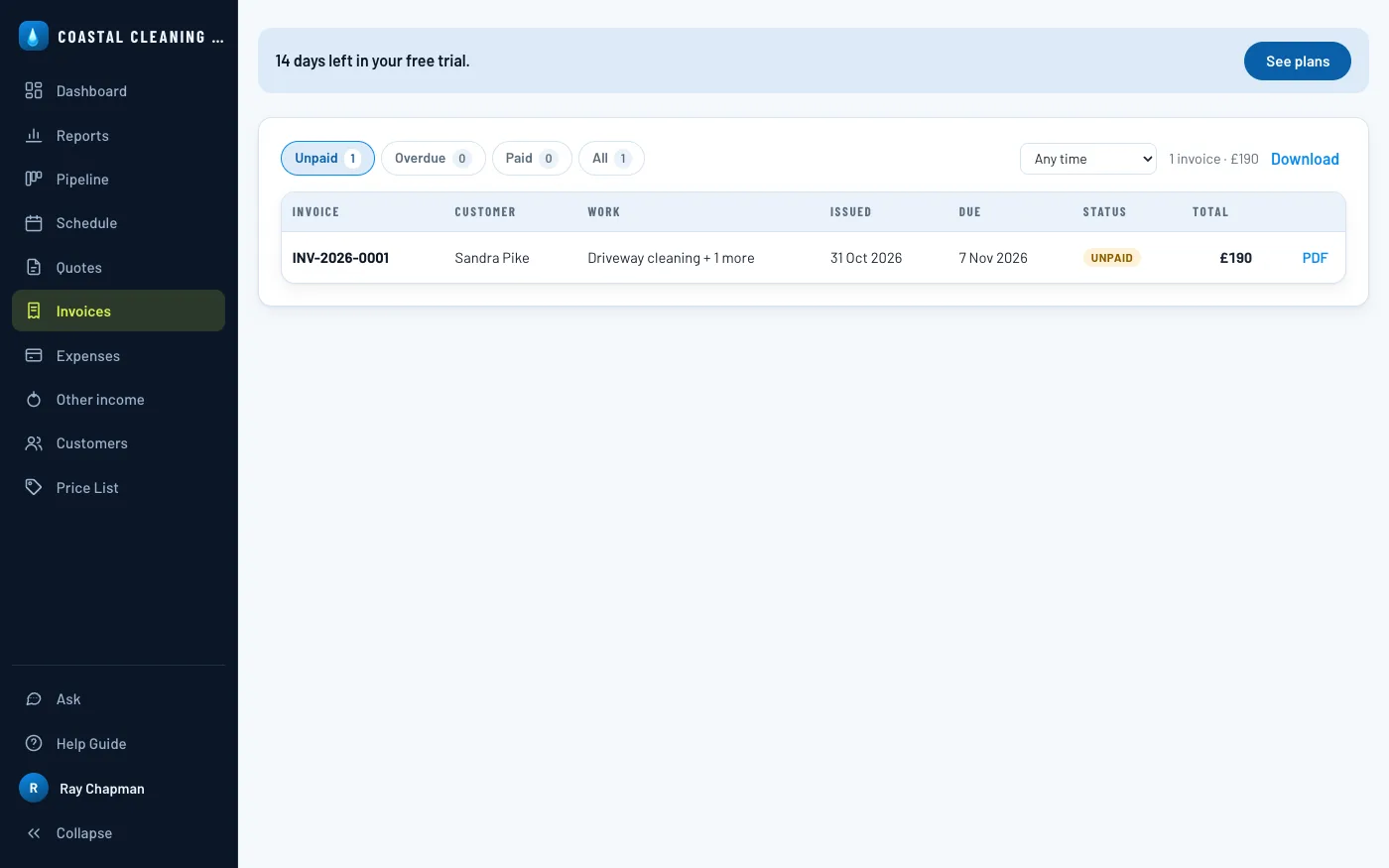
Every invoice you've raised is on the Invoices tab, filtered by Unpaid, Overdue, Paid or All and narrowed to any period — useful for a weekly look at what's owed. Download gives you the same list as a spreadsheet.
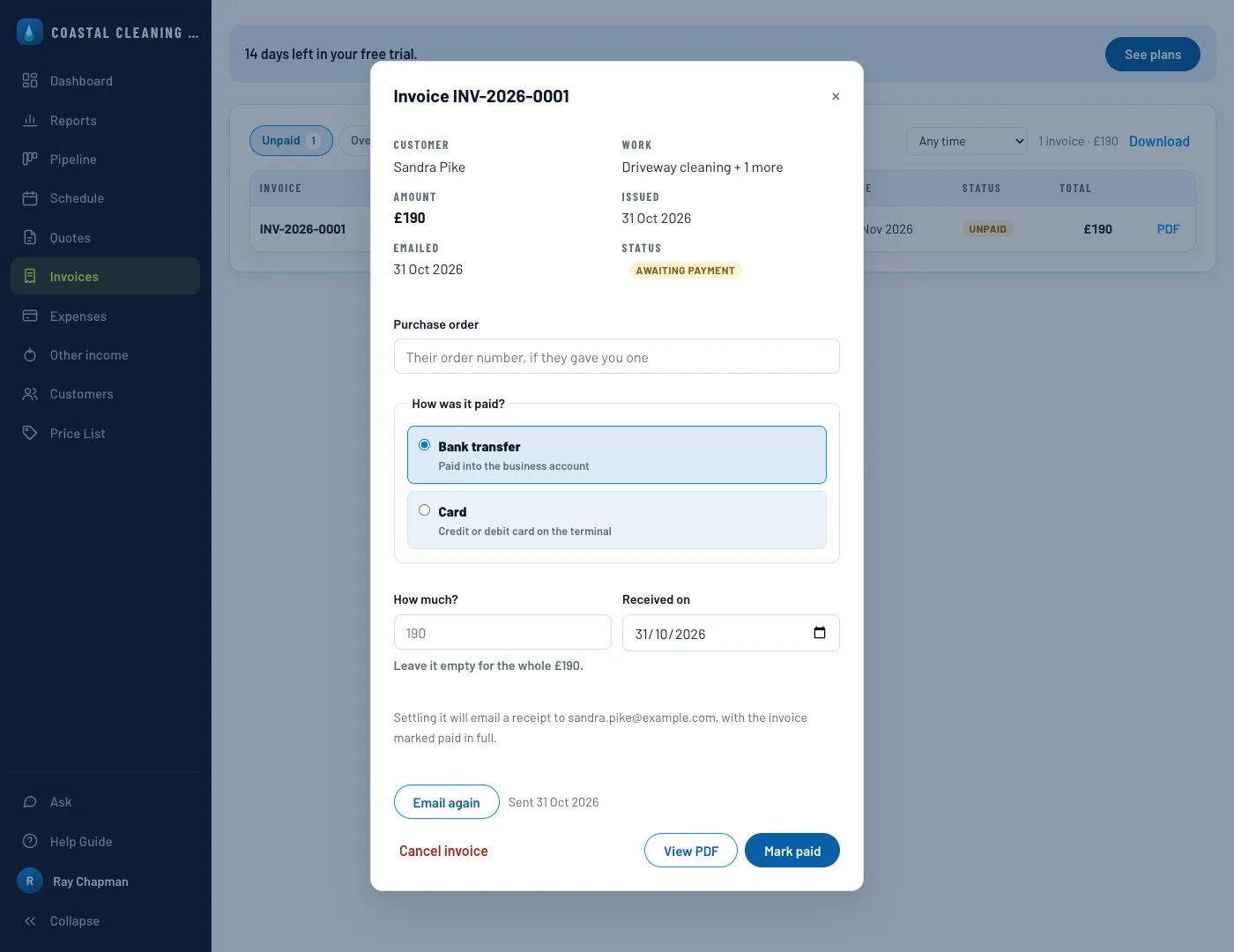
When the money arrives, open the invoice, choose how it was paid and when, and Mark paid. Leave the amount empty for the whole balance, or enter what came in — a deposit now and the rest later is recorded as two payments, and the invoice stays open for what's left. Settling it emails the customer their receipt. A customer who pays on the card link settles the invoice themselves.
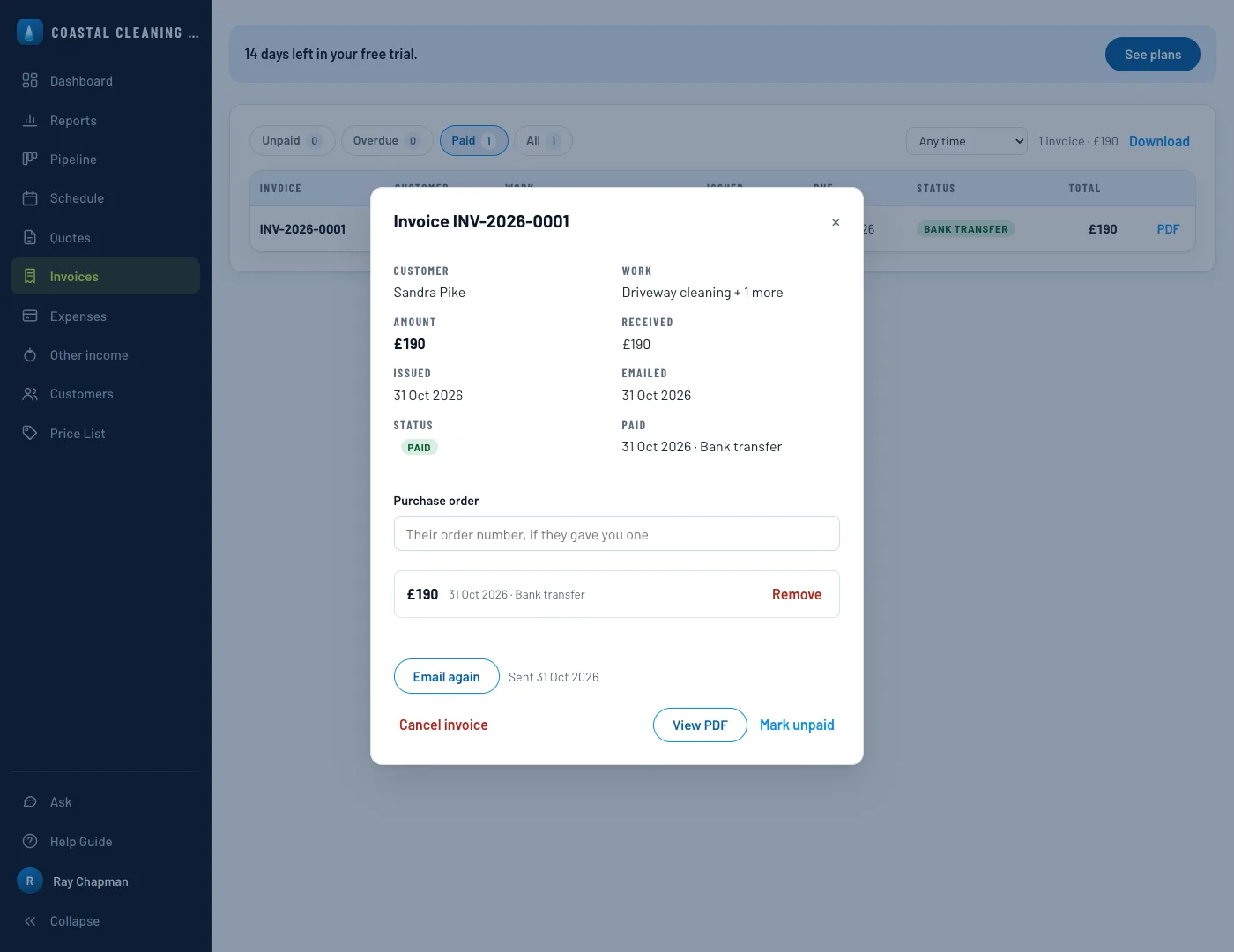
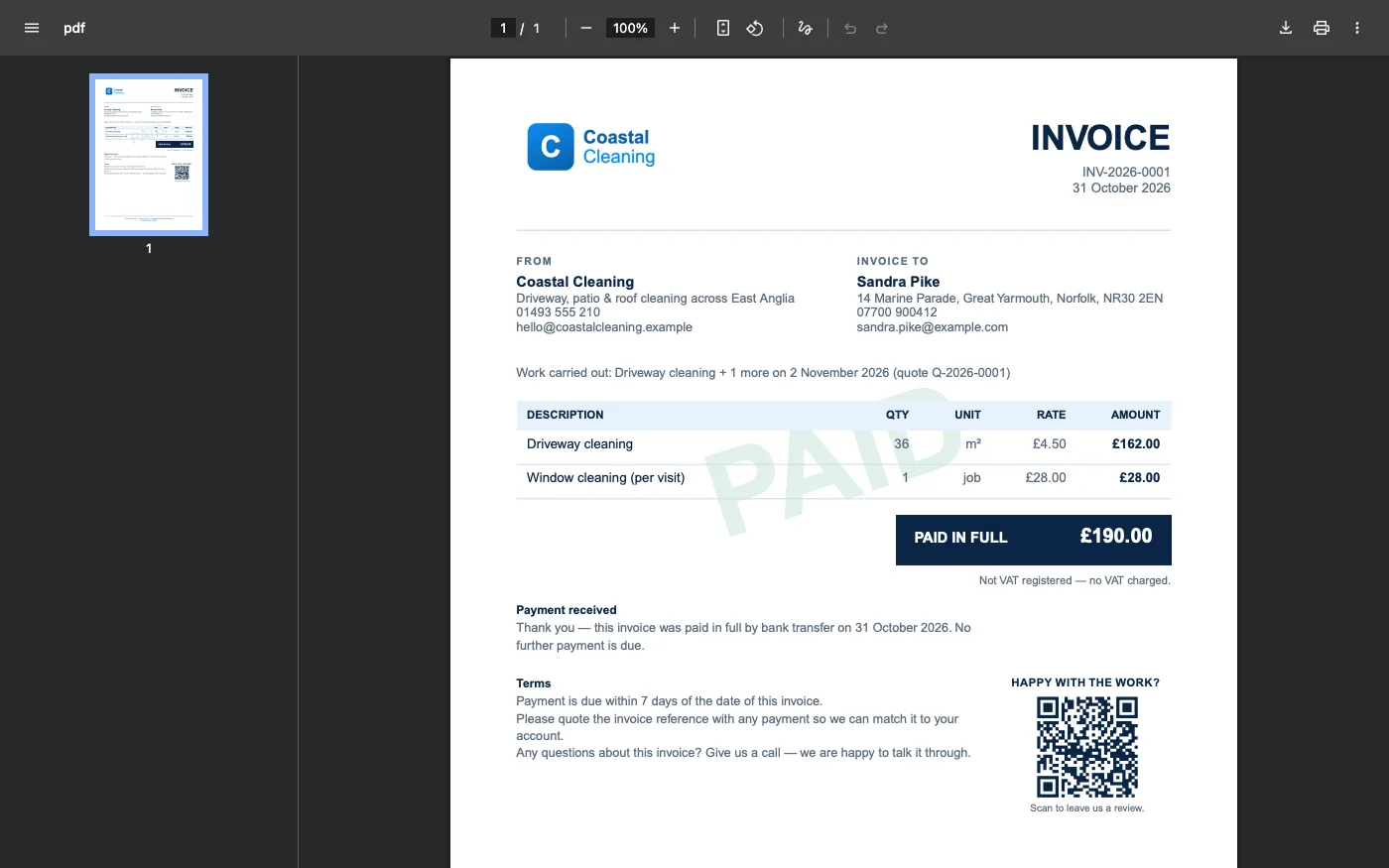
Its PDF now reissues stamped PAID — the same document doubles as a receipt, with nothing further to make.
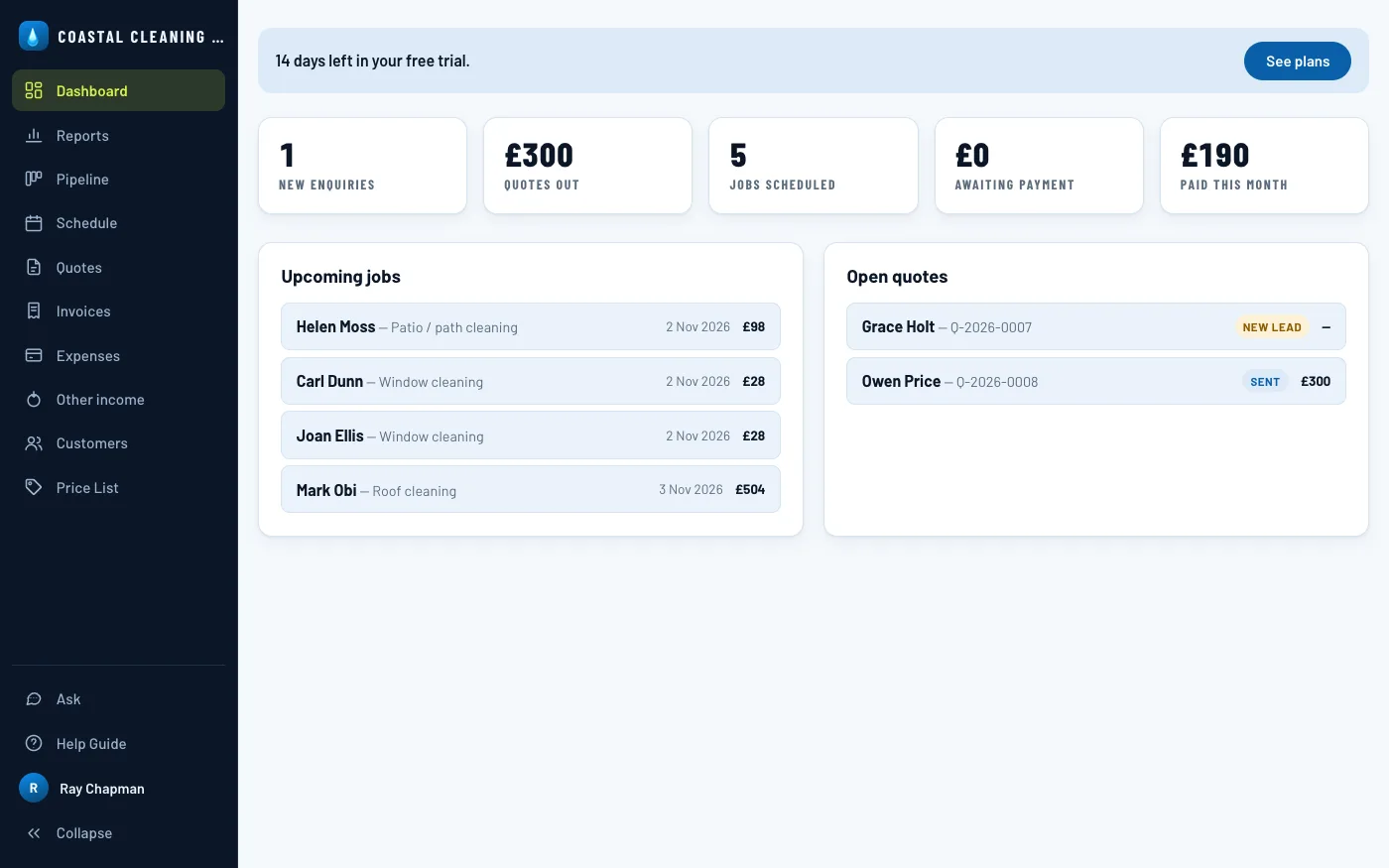
And that's the loop closed — back on the Dashboard, the job you've just followed from quote to payment shows as money paid this month.
Ask for a review
The receipt asks, and nothing else does. Look again at the PAID copy further up this step: at the foot of it, under Happy with the work?, is a small QR code. The customer points a phone camera at it and lands straight on your review page. It is the moment worth asking at — the work is done, the money is settled, and nobody has to bring it up face to face.
The email asks too. Plenty of people read the receipt in their inbox and never open the attachment, so the letter carries the same offer under the sign-off — a Leave a review button, and the code underneath it. On the phone the receipt arrived on, the button is one tap; at a desk, the code is how it gets left on the phone in your pocket without typing the address in by hand.
An invoice that is still owed asks for nothing, and neither does a quote. A document asking to be paid is not the place to ask for a favour as well, and a customer who hasn't paid yet hasn't finished having the experience they'd be reviewing.
Paste the link under Business settings → Asking for reviews. On your
Google Business Profile, Ask for reviews gives you a short
g.page/r/… link that opens the review box straight away — that is the
one to use, though any review page works. Leave it empty and nothing is asked for.
Money going out
Keep track of what you spend
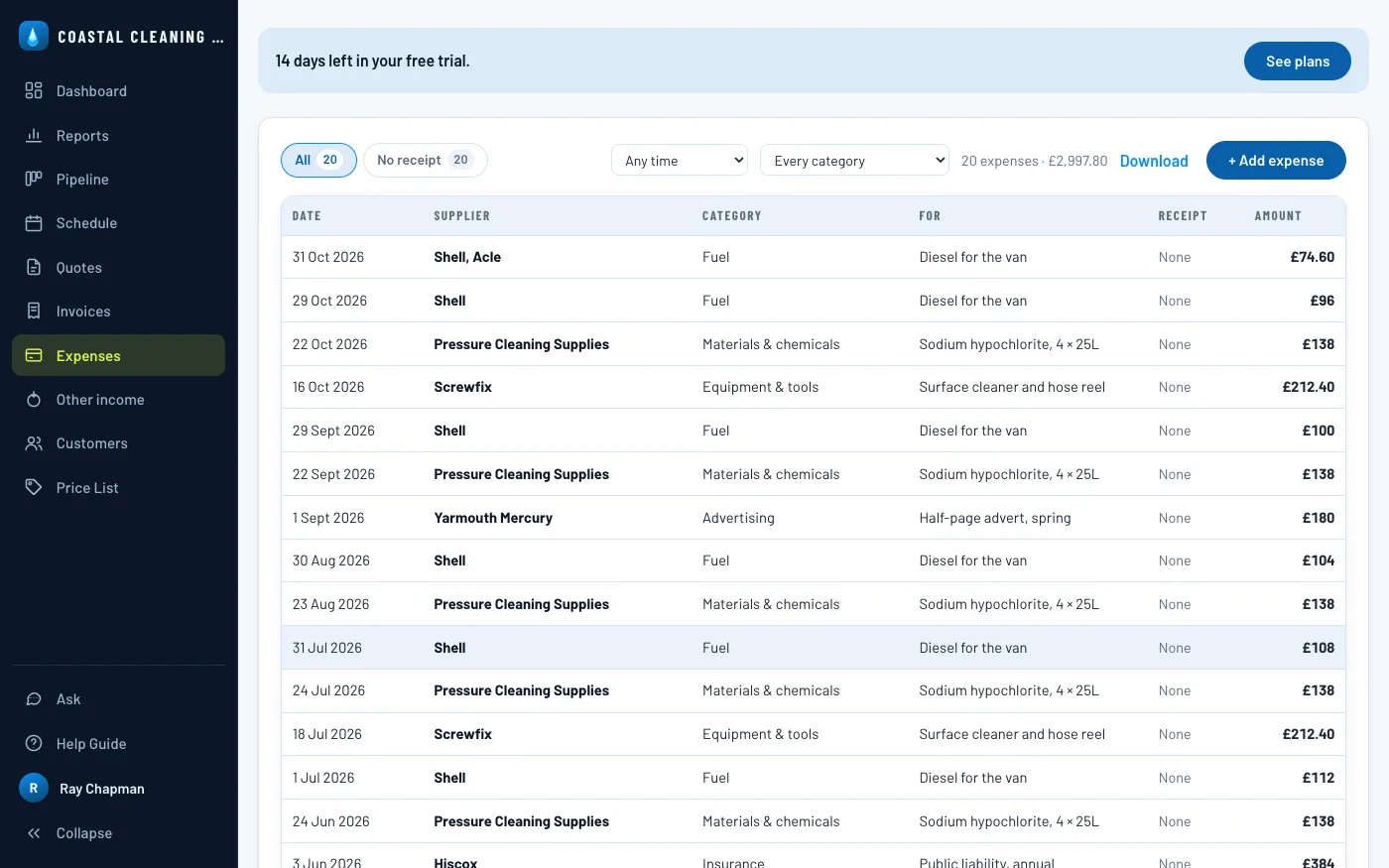
Fuel, chemicals, a new lance, the van insurance: on the Expenses tab, + Add expense and note the date, what it cost, a category, who it was from and what it was for. Attach a photo or PDF of the receipt and it's kept with the expense. If you're VAT registered, there's a box for the VAT on the receipt too.
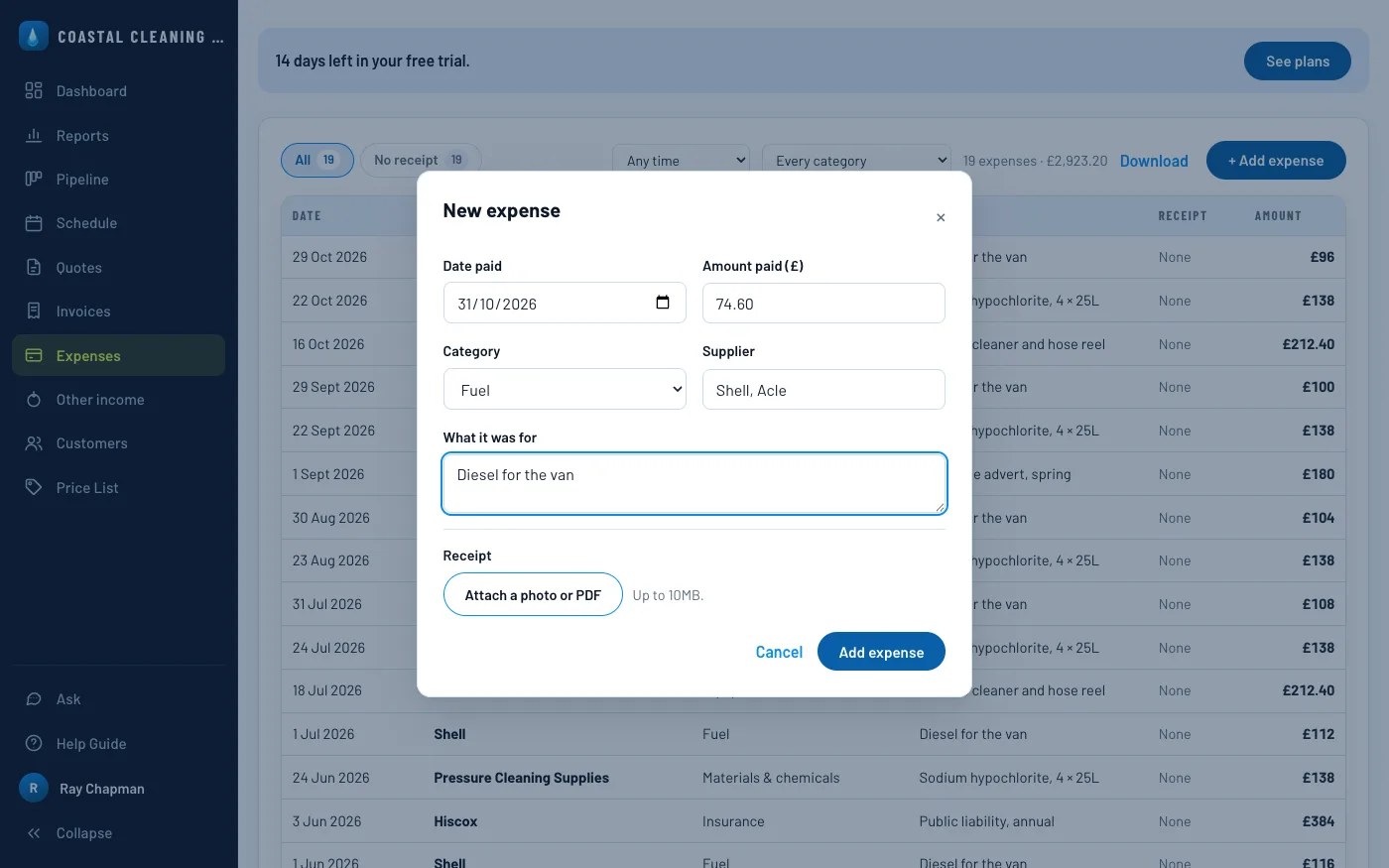
The list narrows by period and category, and one filter shows only the expenses with no receipt kept — the list a bookkeeper will ask you about. Download gives you a spreadsheet. If customers pay by card through Stripe, what Stripe takes is written down here for you — as long as your key can read Stripe's fees (see Take card payments with Stripe).
Paying back a loan goes here too, under Loan repayment. It's money out, but it isn't a cost — the loan was never profit when it came in — so the reports leave it out of your spending and your profit. The interest is a cost, though: add it as its own expense under Bank & card fees.
Money coming in
Record money from anywhere else
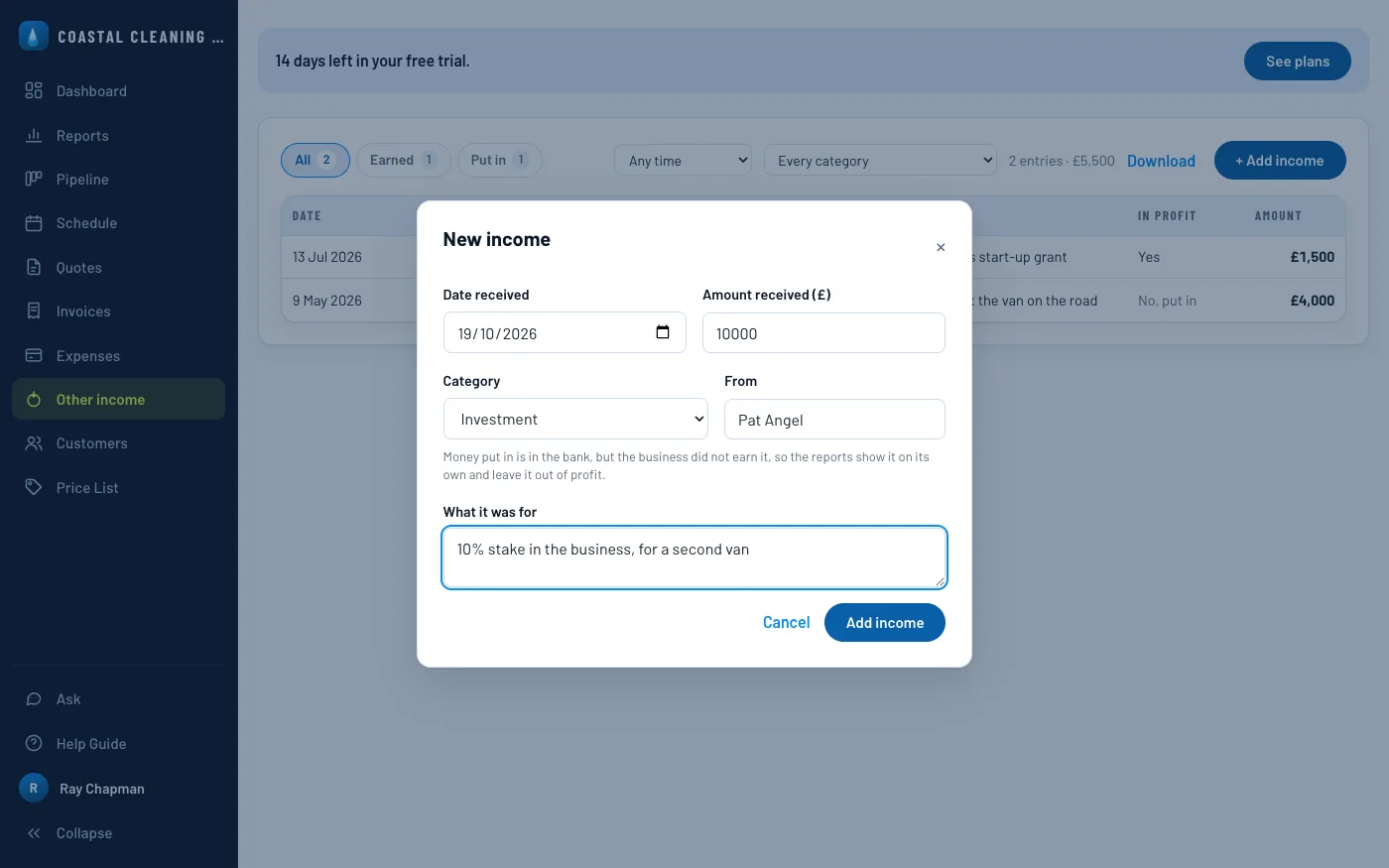
Not every pound in the bank comes from a customer. An investor buys a stake, you take out a loan or put in your own savings, the council pays a start-up grant, you sell the old pressure washer. On the Other income tab, + Add income and note the date it arrived, how much, a category, who it came from and what it was for.
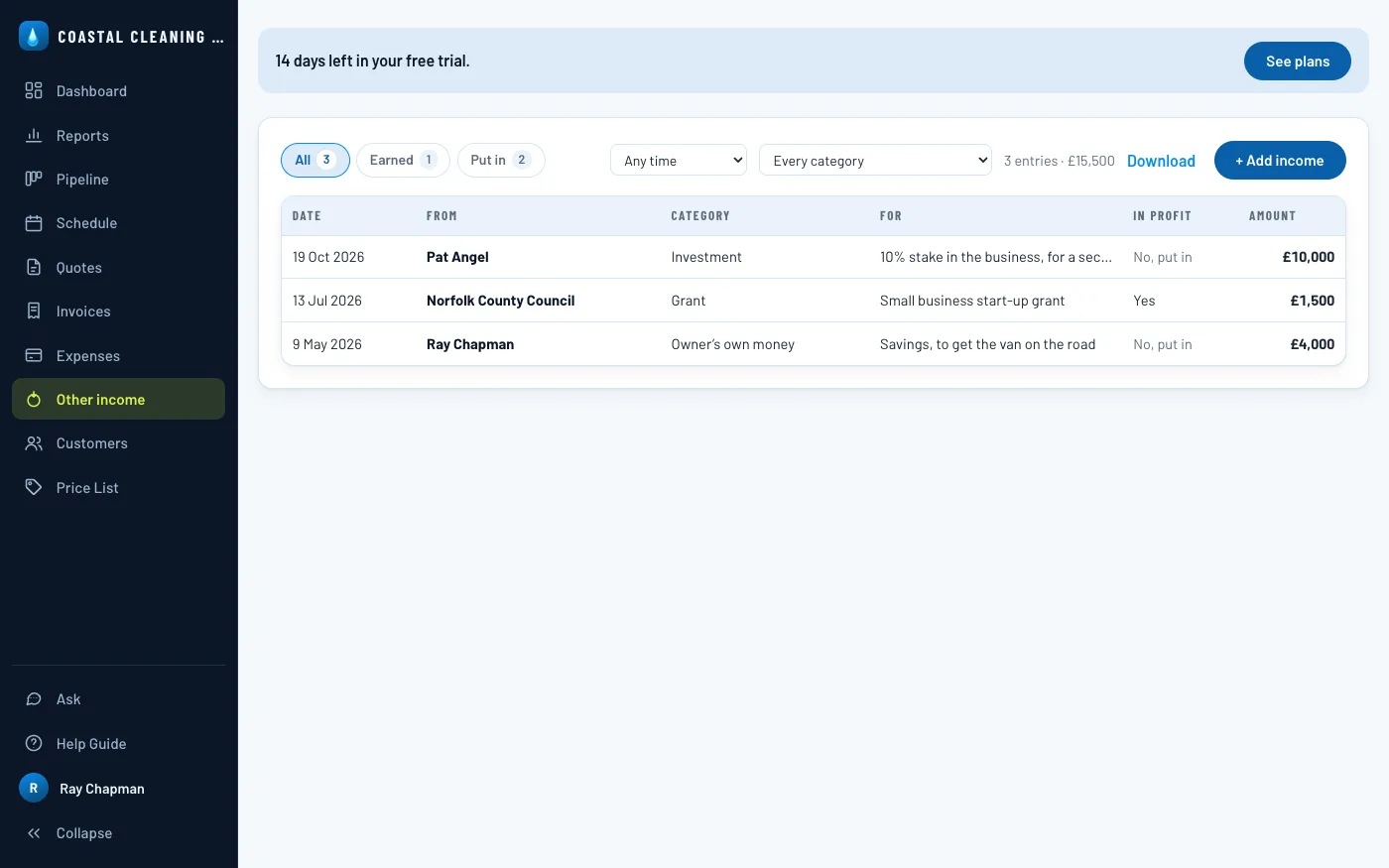
The category matters, because it decides what the reports do with the money. A grant, a sale, an insurance payout or interest was earned, and counts towards your profit. An investment, a loan or your own money was put in: it's in the bank, but the business didn't earn it, so it's never counted as profit. The form tells you which as you pick.
The list filters to what was earned or what was put in, narrows by period and category, and Download gives you a spreadsheet that says which each one was — the first thing your bookkeeper will ask. If you're VAT registered, earned money has a box for any VAT you charged on it, such as when you sell old kit.
The bigger picture
See how the business is doing
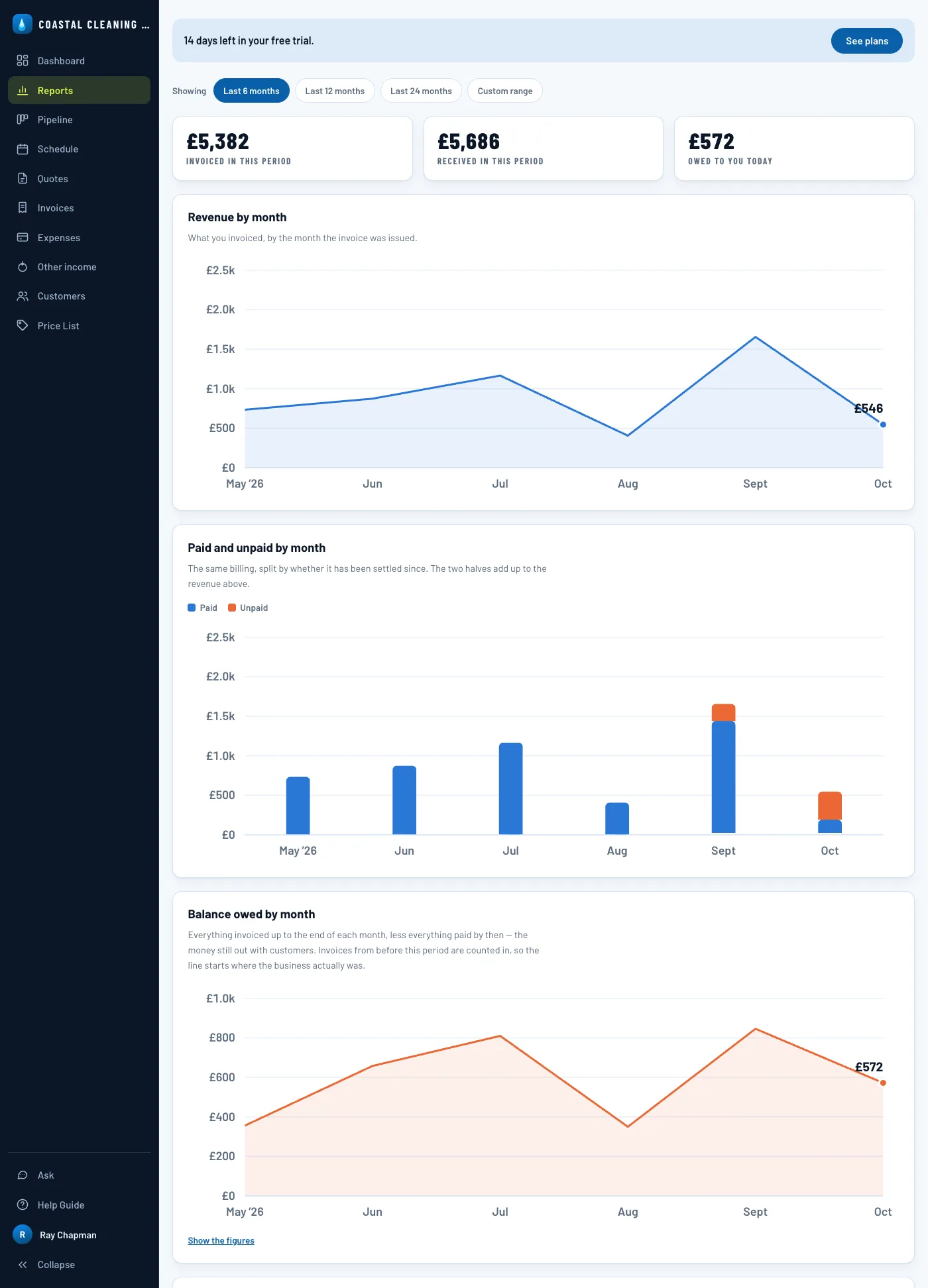
Reports answers "how are we doing", month by month, over the last 6, 12 or 24 months or any range you pick: what you invoiced and how much of it has been paid, what is still owed, money in against money out, your best customers, what each service brings in, how many quotes turn into work, and where the spending goes. Show the figures under a chart puts its numbers in a table.
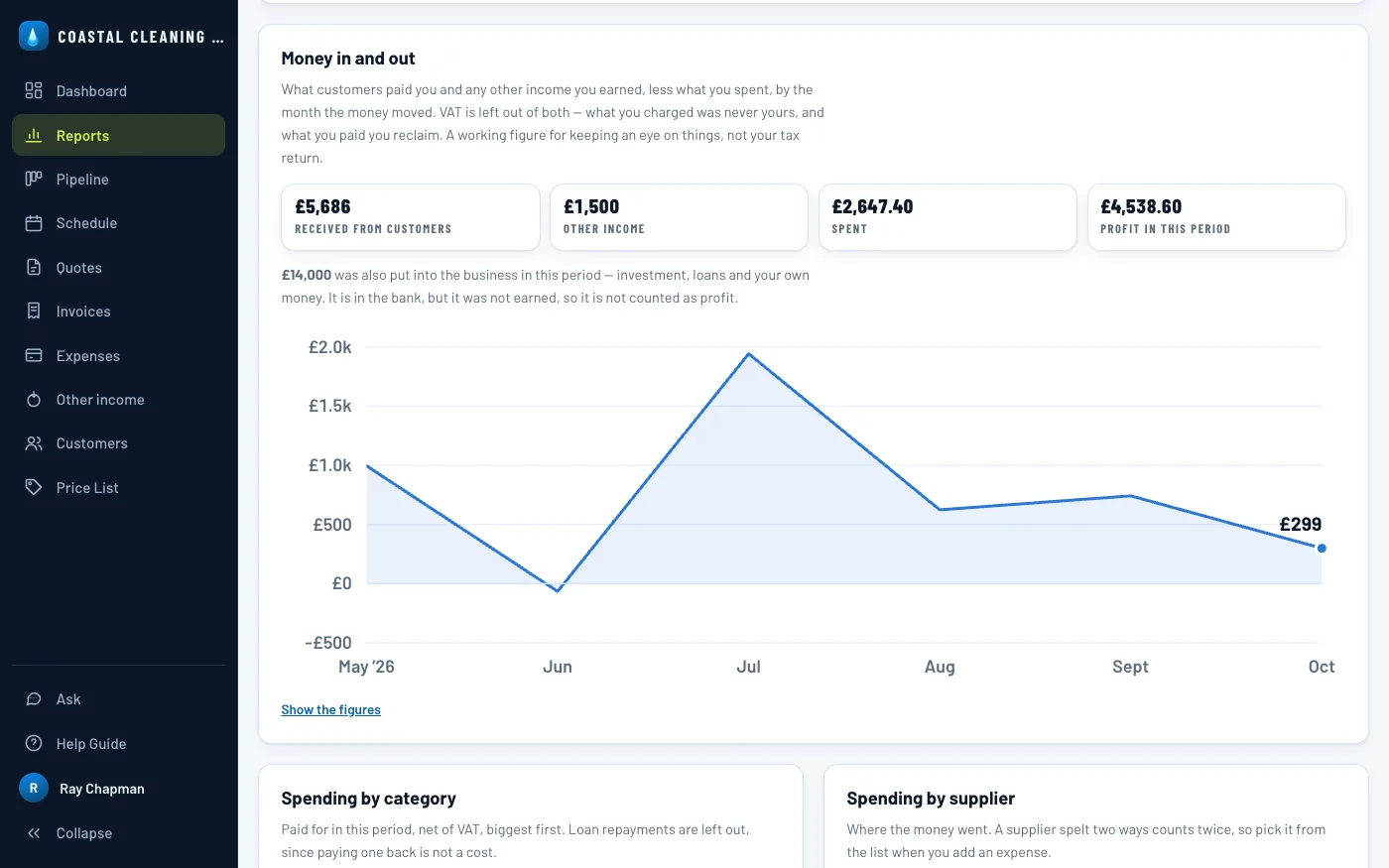
Further down, Money in and out sets what customers paid you, and any other income you earned, against what you spent, and what's left is your profit. Money that was put in is said underneath instead, so the investor's £10,000 is there to see without making the business look £10,000 more profitable than it is — and so is any loan you've paid back, which isn't taken off your profit.
Just ask
Ask about your records
The assistant answers questions about your business in plain words — who owes me money, what's booked in next week, how did last month compare — by reading your own customers, jobs, quotes, invoices, expenses and other income. It's off until an owner or admin turns it on, under The assistant in Business settings, because to answer it sends the records a question needs, customers' names and addresses included, to Anthropic, who run the AI model behind it.
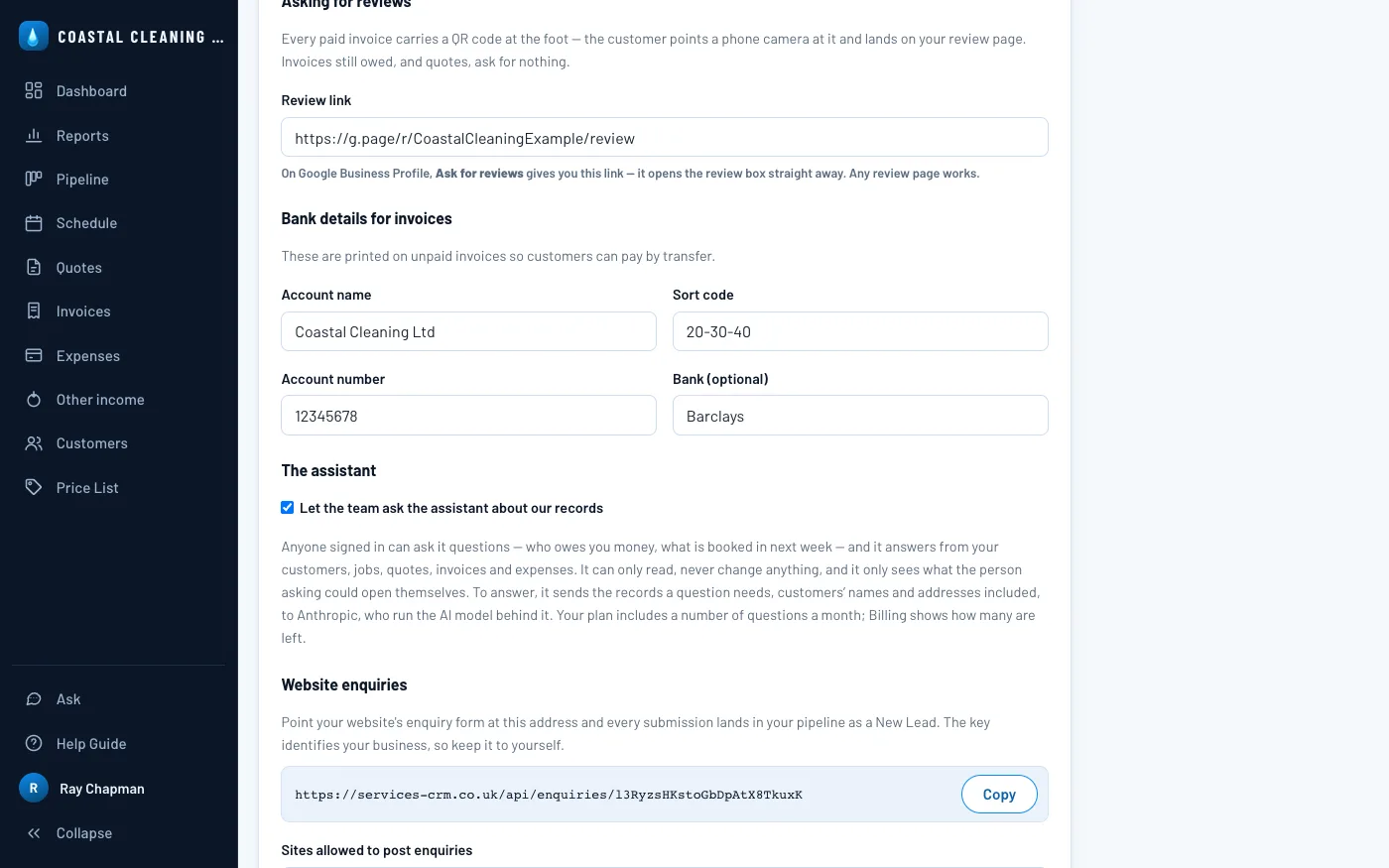
Once it's on, Ask at the foot of the sidebar opens it beside whatever you're looking at. Start from one of the suggestions, or type your own question.
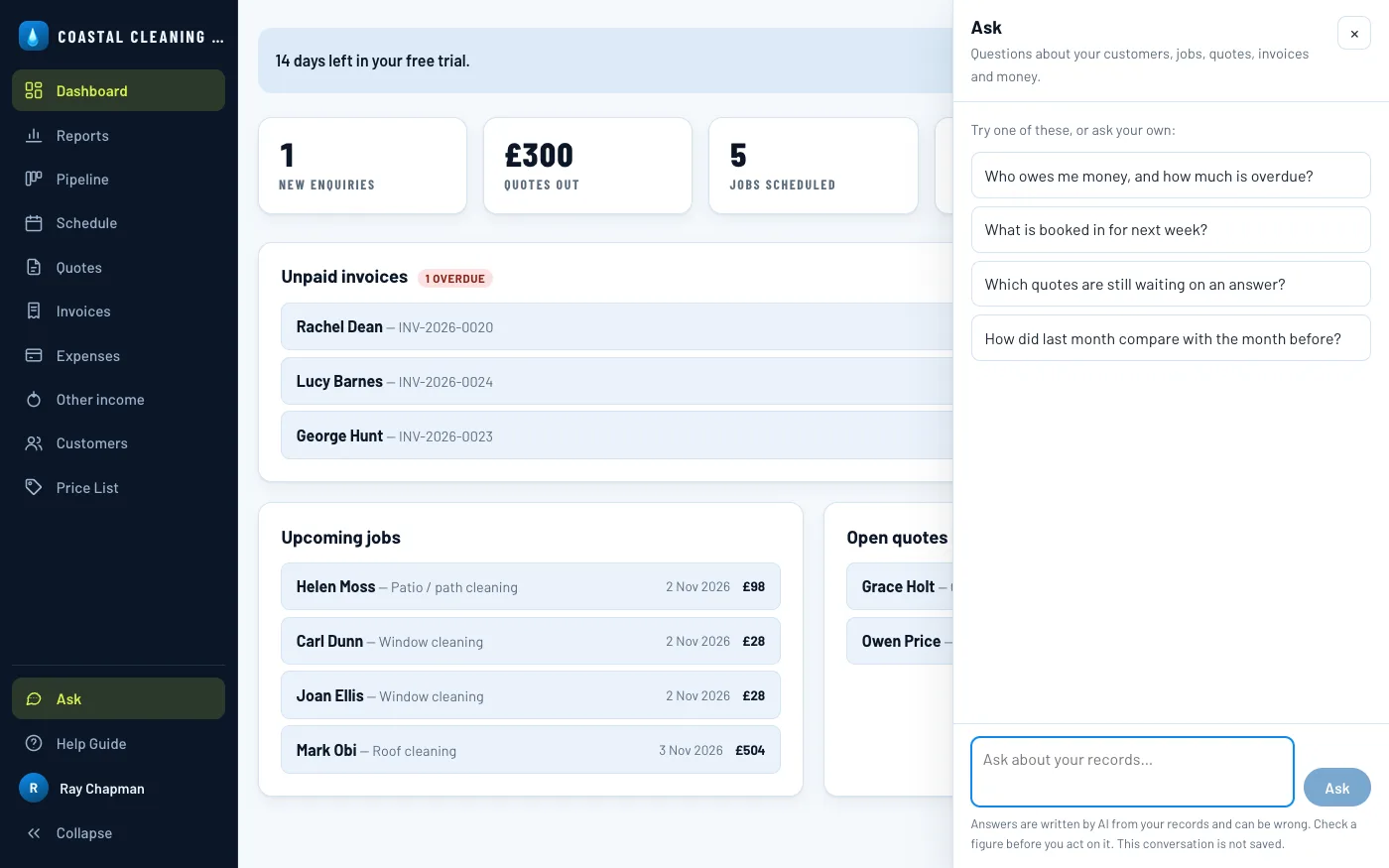
It looks up what it needs and answers, and you can carry on with a follow-up. It only ever reads: ask it to send, book or change something and it tells you where in the app to do it. Staff get answers from what they could open themselves. Answers are written by AI, so check a figure before you act on it. The conversation isn't saved, and your plan includes a number of questions a month, shown under Billing & plan.